> ## Documentation Index
> Fetch the complete documentation index at: https://docs.vibely.sh/llms.txt
> Use this file to discover all available pages before exploring further.
# Connect a custom domain
> Serve your published app on a domain you own: add it, set the DNS records, and go live with free HTTPS.
A custom domain lets people reach your app at your own address, like `app.example.com` or `example.com`, instead of `your-app.vibelyagent.com`. You buy the domain from any registrar (GoDaddy, Namecheap, Cloudflare, and so on), then connect it to your project in Vibely. Vibely issues and renews the HTTPS certificate for you.
 * Custom domains require the **Pro** plan or above.
* Vibely doesn't sell or transfer domains. Buy one from a registrar first.
* By default, workspace owners and admins can connect domains. This is the **Buy / connect domains** row in **Settings → Permissions**.
* Custom domains are for web apps. Mobile projects don't have a **Domains** section.
## Before you start
* **Publish your project.** A domain points at your live app, so the project must be published first. If it isn't, the **Domains** section says *"Your project is not published yet"* with a **Publish now** button.
* **Have access to your domain's DNS settings** at your registrar or DNS provider. You'll add a few records there.
* **Decide on the address.** You can connect a root domain (`example.com`) or a subdomain (`app.example.com`, `www.example.com`).
## Connect your domain
In your project, open **Manage → Settings → Domains**.
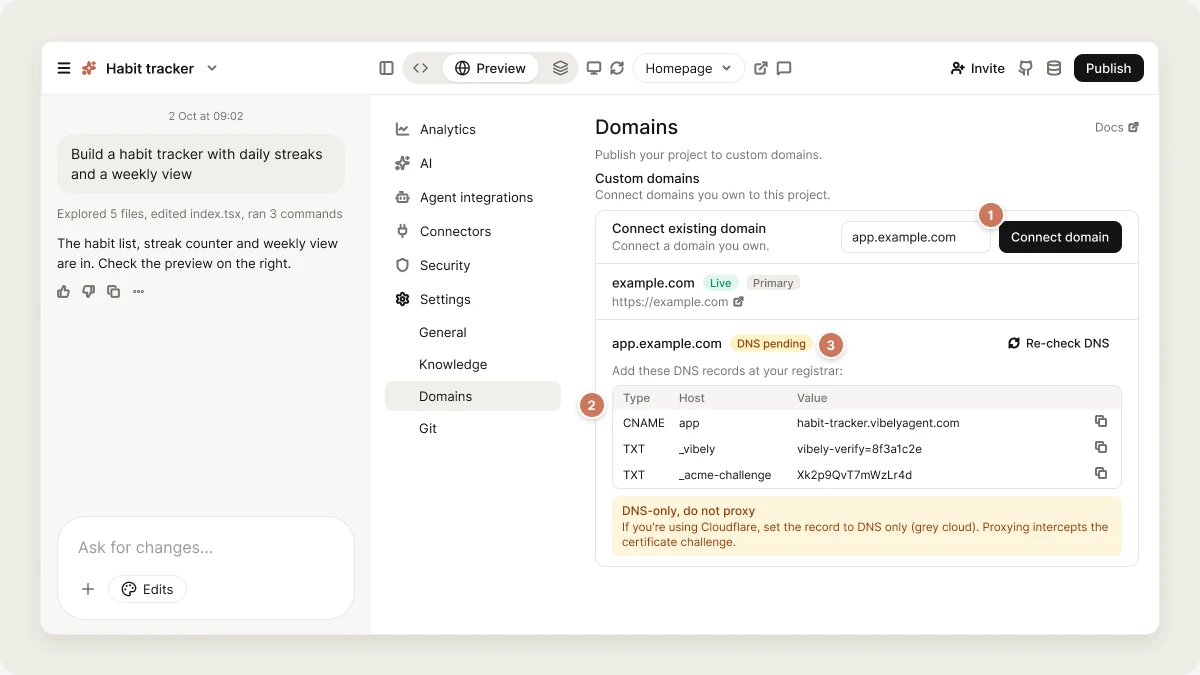
Under **Add a domain**, type the domain, for example `app.example.com`, and click **Connect domain**.
If you enter a root domain like `example.com`, Vibely also adds `www.example.com` for you and lists it under the root.
Vibely shows a table: **Add these DNS records at your registrar**, with the **Type**, **Host** and **Value** of each record and a copy button. Add every record in the table at your DNS provider:
| Record | Used for | What it does |
| - | - | - |
| `CNAME` | Subdomains (and `www`) | Points your domain to your app. |
| `A` (and optional `AAAA`) | Root domains | Points your root domain to your app. The `AAAA` record adds IPv6. |
| `TXT` | Every domain | Proves you own the domain. |
| `TXT` | Every domain | Lets Vibely issue your HTTPS certificate. |
Always copy the exact values from the table. They're specific to your domain. For a root domain, your registrar may want the host as `@` or left blank.
Vibely checks your DNS automatically and updates the status. You can also click **Re-check DNS**. When the status shows **Live**, your app is reachable at your domain over HTTPS.
DNS changes can take up to 24 hours to spread across the internet, though most finish much sooner. Vibely keeps checking.
**Using Cloudflare for DNS?** Set your records to **DNS only** (grey cloud), not proxied. Proxying intercepts the certificate check, and verification won't complete.
### Root domains on registrars without ALIAS support
Some root-domain setups need a CNAME-style record at the root. Plain CNAME records aren't allowed there, so registrars offer alternatives called **ALIAS**, **ANAME** or **CNAME flattening** (Namecheap, DNSimple and Cloudflare support one of them). If your registrar supports none of these (GoDaddy is a common example), you have two options:
* **Use `www` as your main address.** When `www.example.com` is live but `example.com` isn't, Vibely offers a **Use [www.example.com](http://www.example.com) instead** button. Then set up domain forwarding at your registrar so `example.com` redirects to `www.example.com`.
* **Move your DNS to Cloudflare** (free), which supports CNAME flattening.
## Domain statuses
| Status | Meaning |
| - | - |
| **Setting up…** | Vibely is registering your domain. |
| **DNS pending** | Waiting for your DNS records. Check they match the table exactly. |
| **Issuing certificate…** | DNS is verified and the HTTPS certificate is being issued. |
| **Live** | Your app is served on this domain. |
| **Failed** | Something went wrong. The card shows the reason. |
## Primary domain
When you connect more than one domain, one of them is the **primary**. The first domain you connect becomes primary automatically. Visitors to your other custom domains are redirected (301) to the primary one, so search engines see a single address.
To change it, click **Make primary** on another domain. Only a **Live** domain can be primary. Your `vibelyagent.com` address keeps working alongside your custom domains.
## Manage your domains
* **In a project:** **Manage → Settings → Domains** lists the project's domains with their status, DNS records and a link to the live site.
* **Across the workspace:** **Settings → Workspace domains** lists every domain attached to any project, with search, and lets you connect a domain to any published project with **Add domain**.
### Disconnect a domain
Click the trash icon (**Disconnect**) next to the domain and confirm. Visitors stop reaching your app on that domain. If it was a root domain, its `www` is removed too, and another live domain becomes primary. Remove the DNS records at your registrar afterwards if you no longer need them.
## FAQ
**DNS** is the internet's address book: it tells browsers where to find your domain. A **CNAME** record points a name at another name, an **A** record points a name at an IP address (**AAAA** is the IPv6 version), and a **TXT** record holds text that services read to verify things, such as who owns a domain. **SSL/TLS** is what gives your site the padlock and `https://`.
Yes. The certificate is free, issued automatically once your DNS records are in place, and renewed for you.
No. Publish first, then connect the domain.
Not when you connect a root domain: Vibely adds `www` for you. If you connect only a subdomain, only that subdomain is connected.
Yes. Connect each one separately. Non-primary domains redirect to the primary.
No. A domain can only be attached to one project at a time. You'll see *"That domain is already in use."*
An old DNS record still points somewhere else. Remove any `A`, `AAAA` or `CNAME` records for that name that aren't in Vibely's table, then click **Re-check DNS**.
Compare every record with the table, including the host name. Some registrars add your domain to the host automatically, so `app` becomes `app.example.com` and you shouldn't type the full name. Make sure Cloudflare records are **DNS only**. Then allow time for DNS to spread.
Publish the project again. That points the domain at your latest deployment and clears the error.
A domain you own is a long-term home for your search presence, and redirects keep one canonical address. What ranks is still your content and metadata. See [SEO and AI search](/features/grow/seo).
Domains already connected keep working. On a plan below Pro, you can't connect new ones.
## Related
Put your app live first.
A workspace-branded address for every app.
HTTPS, global delivery and scale.
Build search presence on your domain.
## Related topics
- [Optimize your app for SEO and AI search](/features/grow/seo.md)
- [Projects in Vibely](/features/projects/overview.md)
- [Publish your Vibely project](/features/deploy/publish.md)
- [Connect a custom MCP server](/integrations/connectors/custom-mcp.md)
- [FAQ](/faq.md)
This documentation is built and hosted on [Mintlify](https://mintlify.com), a developer documentation platform.
* Custom domains require the **Pro** plan or above.
* Vibely doesn't sell or transfer domains. Buy one from a registrar first.
* By default, workspace owners and admins can connect domains. This is the **Buy / connect domains** row in **Settings → Permissions**.
* Custom domains are for web apps. Mobile projects don't have a **Domains** section.
## Before you start
* **Publish your project.** A domain points at your live app, so the project must be published first. If it isn't, the **Domains** section says *"Your project is not published yet"* with a **Publish now** button.
* **Have access to your domain's DNS settings** at your registrar or DNS provider. You'll add a few records there.
* **Decide on the address.** You can connect a root domain (`example.com`) or a subdomain (`app.example.com`, `www.example.com`).
## Connect your domain
In your project, open **Manage → Settings → Domains**.
Under **Add a domain**, type the domain, for example `app.example.com`, and click **Connect domain**.
If you enter a root domain like `example.com`, Vibely also adds `www.example.com` for you and lists it under the root.
Vibely shows a table: **Add these DNS records at your registrar**, with the **Type**, **Host** and **Value** of each record and a copy button. Add every record in the table at your DNS provider:
| Record | Used for | What it does |
| - | - | - |
| `CNAME` | Subdomains (and `www`) | Points your domain to your app. |
| `A` (and optional `AAAA`) | Root domains | Points your root domain to your app. The `AAAA` record adds IPv6. |
| `TXT` | Every domain | Proves you own the domain. |
| `TXT` | Every domain | Lets Vibely issue your HTTPS certificate. |
Always copy the exact values from the table. They're specific to your domain. For a root domain, your registrar may want the host as `@` or left blank.
Vibely checks your DNS automatically and updates the status. You can also click **Re-check DNS**. When the status shows **Live**, your app is reachable at your domain over HTTPS.
DNS changes can take up to 24 hours to spread across the internet, though most finish much sooner. Vibely keeps checking.
**Using Cloudflare for DNS?** Set your records to **DNS only** (grey cloud), not proxied. Proxying intercepts the certificate check, and verification won't complete.
### Root domains on registrars without ALIAS support
Some root-domain setups need a CNAME-style record at the root. Plain CNAME records aren't allowed there, so registrars offer alternatives called **ALIAS**, **ANAME** or **CNAME flattening** (Namecheap, DNSimple and Cloudflare support one of them). If your registrar supports none of these (GoDaddy is a common example), you have two options:
* **Use `www` as your main address.** When `www.example.com` is live but `example.com` isn't, Vibely offers a **Use [www.example.com](http://www.example.com) instead** button. Then set up domain forwarding at your registrar so `example.com` redirects to `www.example.com`.
* **Move your DNS to Cloudflare** (free), which supports CNAME flattening.
## Domain statuses
| Status | Meaning |
| - | - |
| **Setting up…** | Vibely is registering your domain. |
| **DNS pending** | Waiting for your DNS records. Check they match the table exactly. |
| **Issuing certificate…** | DNS is verified and the HTTPS certificate is being issued. |
| **Live** | Your app is served on this domain. |
| **Failed** | Something went wrong. The card shows the reason. |
## Primary domain
When you connect more than one domain, one of them is the **primary**. The first domain you connect becomes primary automatically. Visitors to your other custom domains are redirected (301) to the primary one, so search engines see a single address.
To change it, click **Make primary** on another domain. Only a **Live** domain can be primary. Your `vibelyagent.com` address keeps working alongside your custom domains.
## Manage your domains
* **In a project:** **Manage → Settings → Domains** lists the project's domains with their status, DNS records and a link to the live site.
* **Across the workspace:** **Settings → Workspace domains** lists every domain attached to any project, with search, and lets you connect a domain to any published project with **Add domain**.
### Disconnect a domain
Click the trash icon (**Disconnect**) next to the domain and confirm. Visitors stop reaching your app on that domain. If it was a root domain, its `www` is removed too, and another live domain becomes primary. Remove the DNS records at your registrar afterwards if you no longer need them.
## FAQ
**DNS** is the internet's address book: it tells browsers where to find your domain. A **CNAME** record points a name at another name, an **A** record points a name at an IP address (**AAAA** is the IPv6 version), and a **TXT** record holds text that services read to verify things, such as who owns a domain. **SSL/TLS** is what gives your site the padlock and `https://`.
Yes. The certificate is free, issued automatically once your DNS records are in place, and renewed for you.
No. Publish first, then connect the domain.
Not when you connect a root domain: Vibely adds `www` for you. If you connect only a subdomain, only that subdomain is connected.
Yes. Connect each one separately. Non-primary domains redirect to the primary.
No. A domain can only be attached to one project at a time. You'll see *"That domain is already in use."*
An old DNS record still points somewhere else. Remove any `A`, `AAAA` or `CNAME` records for that name that aren't in Vibely's table, then click **Re-check DNS**.
Compare every record with the table, including the host name. Some registrars add your domain to the host automatically, so `app` becomes `app.example.com` and you shouldn't type the full name. Make sure Cloudflare records are **DNS only**. Then allow time for DNS to spread.
Publish the project again. That points the domain at your latest deployment and clears the error.
A domain you own is a long-term home for your search presence, and redirects keep one canonical address. What ranks is still your content and metadata. See [SEO and AI search](/features/grow/seo).
Domains already connected keep working. On a plan below Pro, you can't connect new ones.
## Related
Put your app live first.
A workspace-branded address for every app.
HTTPS, global delivery and scale.
Build search presence on your domain.
## Related topics
- [Optimize your app for SEO and AI search](/features/grow/seo.md)
- [Projects in Vibely](/features/projects/overview.md)
- [Publish your Vibely project](/features/deploy/publish.md)
- [Connect a custom MCP server](/integrations/connectors/custom-mcp.md)
- [FAQ](/faq.md)
This documentation is built and hosted on [Mintlify](https://mintlify.com), a developer documentation platform.