> ## Documentation Index
> Fetch the complete documentation index at: https://docs.vibely.sh/llms.txt
> Use this file to discover all available pages before exploring further.
# Publish apps with branded URLs
> Give every app in your workspace a consistent, branded address on vibelyagent.com.
Branded app URLs let your workspace publish apps under a shared, recognizable address pattern instead of a plain `your-app.vibelyagent.com`. You pick one branded subdomain for the workspace, and every app published from it uses it.
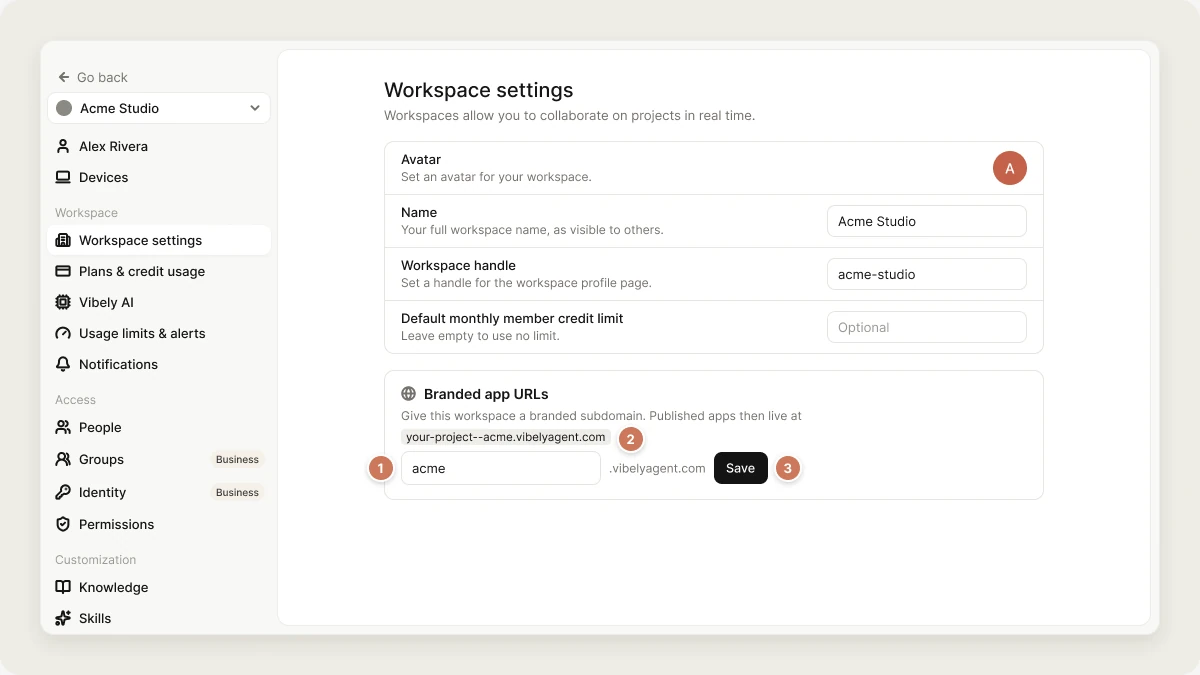 When enabled, your app URLs follow this format:
`https://--.vibelyagent.com`
For example, if your workspace's branded subdomain is `acme`, a project published as `dashboard` lives at `dashboard--acme.vibelyagent.com`.
* **Available on:** Business and Enterprise plans
* **Location:** **Settings → *your workspace name* → Branded app URLs**
## Why use branded app URLs
* Every app in the workspace has a consistent, recognizable address.
* Clients and teammates can tell at a glance which apps are yours.
* Apps stay branded before, or instead of, setting up [custom domains](/features/deploy/custom-domain).
## Set up branded app URLs
A workspace has one branded subdomain.
Go to **Settings → *your workspace name* → Branded app URLs**. Type your subdomain in the field (for example `acme`). The card shows a preview of your app addresses.
The subdomain must be 3–63 characters: lowercase letters, numbers and single hyphens, with no hyphen at the start or end and no double hyphen. Common words like `www`, `api`, `app`, `admin` and `docs` are reserved, and each subdomain can be used by only one workspace.
Click **Save**. There's nothing to provision: the address works as soon as you publish.
[Publish](/features/deploy/publish) as usual. The branded address applies to each app the next time it's published, so republish existing apps with **Update** to move them to the branded pattern.
### Which URL your app uses
* Apps published after you save use `--.vibelyagent.com`.
* Apps that were already live switch at their next publish.
* A project can also have a [custom domain](/features/deploy/custom-domain). Custom domains keep working alongside the branded address.
## Turn off branded app URLs
Clear the field in **Settings → *your workspace name* → Branded app URLs** and click **Save**. Apps go back to the plain `.vibelyagent.com` pattern the next time they're published.
## Troubleshooting
Check that your workspace is on Business or Enterprise. The field is locked on other plans.
Another workspace uses it. Pick a variation, such as your company name plus a suffix.
The branded address applies at publish time. Open **Publish** and click **Update**.
## Related
Put your app live and push updates.
Serve an app on a domain you own.
Other workspace-wide settings.
Vibely for larger organizations.
## Related topics
- [Connect a custom domain](/features/deploy/custom-domain.md)
- [How Vibely hosts your app](/features/deploy/hosting.md)
- [Workspace admin settings](/features/workspace/admin-settings.md)
- [Web App Mode](/features/web-apps/overview.md)
- [Glossary](/glossary.md)
This documentation is built and hosted on [Mintlify](https://mintlify.com), a developer documentation platform.
When enabled, your app URLs follow this format:
`https://--.vibelyagent.com`
For example, if your workspace's branded subdomain is `acme`, a project published as `dashboard` lives at `dashboard--acme.vibelyagent.com`.
* **Available on:** Business and Enterprise plans
* **Location:** **Settings → *your workspace name* → Branded app URLs**
## Why use branded app URLs
* Every app in the workspace has a consistent, recognizable address.
* Clients and teammates can tell at a glance which apps are yours.
* Apps stay branded before, or instead of, setting up [custom domains](/features/deploy/custom-domain).
## Set up branded app URLs
A workspace has one branded subdomain.
Go to **Settings → *your workspace name* → Branded app URLs**. Type your subdomain in the field (for example `acme`). The card shows a preview of your app addresses.
The subdomain must be 3–63 characters: lowercase letters, numbers and single hyphens, with no hyphen at the start or end and no double hyphen. Common words like `www`, `api`, `app`, `admin` and `docs` are reserved, and each subdomain can be used by only one workspace.
Click **Save**. There's nothing to provision: the address works as soon as you publish.
[Publish](/features/deploy/publish) as usual. The branded address applies to each app the next time it's published, so republish existing apps with **Update** to move them to the branded pattern.
### Which URL your app uses
* Apps published after you save use `--.vibelyagent.com`.
* Apps that were already live switch at their next publish.
* A project can also have a [custom domain](/features/deploy/custom-domain). Custom domains keep working alongside the branded address.
## Turn off branded app URLs
Clear the field in **Settings → *your workspace name* → Branded app URLs** and click **Save**. Apps go back to the plain `.vibelyagent.com` pattern the next time they're published.
## Troubleshooting
Check that your workspace is on Business or Enterprise. The field is locked on other plans.
Another workspace uses it. Pick a variation, such as your company name plus a suffix.
The branded address applies at publish time. Open **Publish** and click **Update**.
## Related
Put your app live and push updates.
Serve an app on a domain you own.
Other workspace-wide settings.
Vibely for larger organizations.
## Related topics
- [Connect a custom domain](/features/deploy/custom-domain.md)
- [How Vibely hosts your app](/features/deploy/hosting.md)
- [Workspace admin settings](/features/workspace/admin-settings.md)
- [Web App Mode](/features/web-apps/overview.md)
- [Glossary](/glossary.md)
This documentation is built and hosted on [Mintlify](https://mintlify.com), a developer documentation platform.