> ## Documentation Index
> Fetch the complete documentation index at: https://docs.vibely.sh/llms.txt
> Use this file to discover all available pages before exploring further.
# Define workspace and project knowledge
> Give Vibely persistent instructions with workspace knowledge and project knowledge, such as coding standards, architecture rules, and project context it remembers on every message.
Knowledge lets you give Vibely persistent instructions and context. Instead of repeating the same explanations in every message, you write them once and Vibely reads them every time it works on your project.
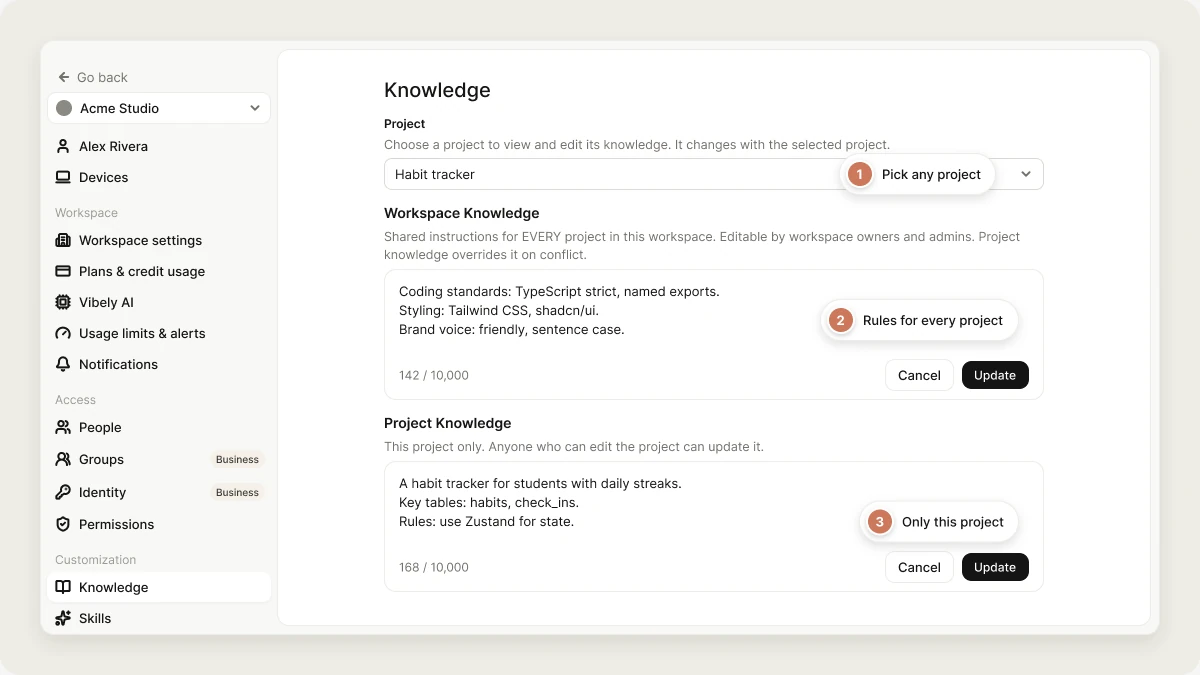 Knowledge is defined at two levels:
* **Workspace knowledge** defines shared rules for every project in a workspace, such as coding standards, preferred libraries, or naming conventions.
* **Project knowledge** adds context for a single project, such as what the app does, key database tables, architecture decisions, or domain terms.
Both are plain text fields, and Vibely reads both on every message, in [Build mode](/features/agent/build-mode), in [Plan mode](/features/agent/plan-mode), and when it answers questions.
## Skills vs. knowledge
Skills and knowledge complement each other.
* **Knowledge** is always included. Use it for rules and conventions that apply to everything Vibely does, such as coding standards, brand guidelines, or your project's terminology.
* [Skills](/features/context/skills) are loaded on demand. Use them for instructions that only matter for specific tasks, such as a launch checklist or a release-notes format.
If an instruction matters on every message, put it in knowledge. If it only matters when a particular kind of task comes up, make it a skill.
## Workspace knowledge
Workspace knowledge lets you define shared rules once and apply them to every project in your workspace. It's best for **rules and conventions that should be consistent across projects**, so you don't repeat them in each project's knowledge.
It's especially useful for teams. Workspace owners and admins can set guardrails, such as coding standards or architecture rules, that every project follows automatically.
Only **workspace owners and admins** can edit workspace knowledge. Other members can read it.
To manage workspace knowledge, open **Settings → Knowledge**. The page also has a **Project** selector, so you can edit any project's knowledge from the same place without opening the project.
Workspace knowledge supports up to **10,000 characters**.
### What to include
Workspace knowledge is best for:
* Coding style and naming conventions
* Preferred libraries or frameworks
* Shared architecture patterns
* Testing and code quality rules
* Language, date, and number formatting
* Brand voice, UI copy, or design guidelines
* Things Vibely should avoid doing
### Example
```text wrap theme={"system"}
Coding standards
- Use TypeScript strict mode. Never use `any`; use `unknown` and narrow it.
- Prefer named exports. Do not use default exports.
Naming
- camelCase for variables and functions, PascalCase for components and types, kebab-case for file names.
Styling
- Use Tailwind CSS. No inline styles.
- Use shadcn/ui components when one exists.
Architecture
- Route API calls through a service layer. Don't call `fetch` directly from components.
Brand voice
- Friendly and professional. Sentence case for headings and buttons.
- Never ship placeholder text like "Lorem ipsum". Write realistic copy.
```
### Important notes
* **Changes apply on the next message.** If you update knowledge during a conversation, Vibely uses the new text from your next message on.
* **One workspace knowledge per workspace.** You can't define different workspace-level instructions for different groups of projects in the same workspace.
* **Long conversations.** Knowledge is always included, but in very long conversations with a lot of context, instructions may not be followed perfectly every time.
## Project knowledge
Project knowledge stores persistent instructions and context for one project, such as what the app is for, who uses it, and how it's built.
Anyone who can edit the project can update its project knowledge. To manage it, open the project and go to **Manage → Settings → Knowledge**, or use the **Project** selector in **Settings → Knowledge**.
Project knowledge supports up to **10,000 characters**.
### What to include
Good project knowledge usually covers:
* What the app does and who it's for
* Key database tables
* Architecture decisions
* Domain terminology
* Project-specific constraints
* Design guidelines, such as colors, fonts, or layout
* Links to important references, such as API documentation
* Security or compliance requirements
### Example
```text wrap theme={"system"}
Project overview
A B2B app for restaurant managers to track food inventory across locations.
Users
Restaurant managers who need quick visibility into stock levels. Staff who log inventory changes.
Key tables
- inventory_items (id, name, category, quantity, unit, location_id)
- locations (id, name)
- transactions (id, item_id, quantity_change, type, created_at)
Rules
- Store money as integer cents.
- Use optimistic updates for all mutations.
Terms
- "Transaction" means a change in inventory quantity, not a payment.
```
### A mobile example
The rules that matter for a native app are different from those for a web app. Breakpoints, hover states, and SEO tags mean nothing in React Native. Minimum OS versions, navigation, and touch targets do.
```text wrap theme={"system"}
Platform targets
- iOS 16+, Android 13+. Don't add a dependency that needs a newer version.
- Expo Go must keep working for preview.
Navigation
- expo-router with a bottom tab bar. No drawer navigation.
Design
- Colors come from the theme. No hex values in screen files.
- Set every color in both the light and dark themes.
- Minimum touch target 44x44pt.
Behavior
- Haptics on primary actions only.
- Every screen that loads data has empty, loading, and error states.
```
## Best practices
Put coding standards, preferred libraries, and conventions in **workspace knowledge**, then use **project knowledge** for what's specific to each project.
If a project needs to differ from the workspace default, say so in project knowledge. When the two conflict, Vibely follows **project knowledge**. Write the project rule as an override ("In this project, use Zustand instead of React Query"), not as a restatement.
Clear rules work better than general advice. "Use TypeScript strict mode. Never use `any`." is more useful than "Write clean code."
Imagine explaining the project to a new developer. Include the decisions you don't want changed, so Vibely doesn't try to change them.
Bullet lists and direct rules work better than long paragraphs. Knowledge is read on every message, so every line you add is read every time.
When your stack or architecture changes, update your knowledge so Vibely doesn't follow outdated rules. A few clear rules and a short project description already make a big difference.
## FAQ
Workspace knowledge and project knowledge each support up to 10,000 characters. The editor shows a live character count and disables **Save** above the limit.
No. Each workspace has one workspace knowledge shared by all its projects.
Not as knowledge. Vibely's knowledge comes only from the two knowledge fields. Vibely may still open those files if a task calls for reading them, like any other file in your project, but they aren't included automatically. Put instructions you want applied every time into project or workspace knowledge.
Both are included on every message. When they conflict, Vibely is told to follow **project knowledge**, because it's specific to the current project.
Yes. The [Vibely MCP server](/integrations/vibely-mcp-server) lets tools such as Claude and ChatGPT read and set project and workspace knowledge on your behalf. Setting knowledge replaces the existing text, so read it first and write back the combined version.
Knowledge is always included as background context. [Skills](/features/context/skills) are loaded only when a request calls for them. Use knowledge for rules that apply to every message, and skills for instructions that apply to specific tasks.
## Related topics
Reusable instructions Vibely loads on demand.
Where project knowledge lives in the editor.
Manage your workspace.
Manage knowledge from other AI tools.
## Related topics
- [Define reusable instructions with skills](/features/context/skills.md)
- [Vibely workspace](/features/workspace/overview.md)
- [Workspace admin settings](/features/workspace/admin-settings.md)
- [Design systems](/features/design/design-systems.md)
- [Project settings](/features/projects/settings.md)
This documentation is built and hosted on [Mintlify](https://mintlify.com), a developer documentation platform.
Knowledge is defined at two levels:
* **Workspace knowledge** defines shared rules for every project in a workspace, such as coding standards, preferred libraries, or naming conventions.
* **Project knowledge** adds context for a single project, such as what the app does, key database tables, architecture decisions, or domain terms.
Both are plain text fields, and Vibely reads both on every message, in [Build mode](/features/agent/build-mode), in [Plan mode](/features/agent/plan-mode), and when it answers questions.
## Skills vs. knowledge
Skills and knowledge complement each other.
* **Knowledge** is always included. Use it for rules and conventions that apply to everything Vibely does, such as coding standards, brand guidelines, or your project's terminology.
* [Skills](/features/context/skills) are loaded on demand. Use them for instructions that only matter for specific tasks, such as a launch checklist or a release-notes format.
If an instruction matters on every message, put it in knowledge. If it only matters when a particular kind of task comes up, make it a skill.
## Workspace knowledge
Workspace knowledge lets you define shared rules once and apply them to every project in your workspace. It's best for **rules and conventions that should be consistent across projects**, so you don't repeat them in each project's knowledge.
It's especially useful for teams. Workspace owners and admins can set guardrails, such as coding standards or architecture rules, that every project follows automatically.
Only **workspace owners and admins** can edit workspace knowledge. Other members can read it.
To manage workspace knowledge, open **Settings → Knowledge**. The page also has a **Project** selector, so you can edit any project's knowledge from the same place without opening the project.
Workspace knowledge supports up to **10,000 characters**.
### What to include
Workspace knowledge is best for:
* Coding style and naming conventions
* Preferred libraries or frameworks
* Shared architecture patterns
* Testing and code quality rules
* Language, date, and number formatting
* Brand voice, UI copy, or design guidelines
* Things Vibely should avoid doing
### Example
```text wrap theme={"system"}
Coding standards
- Use TypeScript strict mode. Never use `any`; use `unknown` and narrow it.
- Prefer named exports. Do not use default exports.
Naming
- camelCase for variables and functions, PascalCase for components and types, kebab-case for file names.
Styling
- Use Tailwind CSS. No inline styles.
- Use shadcn/ui components when one exists.
Architecture
- Route API calls through a service layer. Don't call `fetch` directly from components.
Brand voice
- Friendly and professional. Sentence case for headings and buttons.
- Never ship placeholder text like "Lorem ipsum". Write realistic copy.
```
### Important notes
* **Changes apply on the next message.** If you update knowledge during a conversation, Vibely uses the new text from your next message on.
* **One workspace knowledge per workspace.** You can't define different workspace-level instructions for different groups of projects in the same workspace.
* **Long conversations.** Knowledge is always included, but in very long conversations with a lot of context, instructions may not be followed perfectly every time.
## Project knowledge
Project knowledge stores persistent instructions and context for one project, such as what the app is for, who uses it, and how it's built.
Anyone who can edit the project can update its project knowledge. To manage it, open the project and go to **Manage → Settings → Knowledge**, or use the **Project** selector in **Settings → Knowledge**.
Project knowledge supports up to **10,000 characters**.
### What to include
Good project knowledge usually covers:
* What the app does and who it's for
* Key database tables
* Architecture decisions
* Domain terminology
* Project-specific constraints
* Design guidelines, such as colors, fonts, or layout
* Links to important references, such as API documentation
* Security or compliance requirements
### Example
```text wrap theme={"system"}
Project overview
A B2B app for restaurant managers to track food inventory across locations.
Users
Restaurant managers who need quick visibility into stock levels. Staff who log inventory changes.
Key tables
- inventory_items (id, name, category, quantity, unit, location_id)
- locations (id, name)
- transactions (id, item_id, quantity_change, type, created_at)
Rules
- Store money as integer cents.
- Use optimistic updates for all mutations.
Terms
- "Transaction" means a change in inventory quantity, not a payment.
```
### A mobile example
The rules that matter for a native app are different from those for a web app. Breakpoints, hover states, and SEO tags mean nothing in React Native. Minimum OS versions, navigation, and touch targets do.
```text wrap theme={"system"}
Platform targets
- iOS 16+, Android 13+. Don't add a dependency that needs a newer version.
- Expo Go must keep working for preview.
Navigation
- expo-router with a bottom tab bar. No drawer navigation.
Design
- Colors come from the theme. No hex values in screen files.
- Set every color in both the light and dark themes.
- Minimum touch target 44x44pt.
Behavior
- Haptics on primary actions only.
- Every screen that loads data has empty, loading, and error states.
```
## Best practices
Put coding standards, preferred libraries, and conventions in **workspace knowledge**, then use **project knowledge** for what's specific to each project.
If a project needs to differ from the workspace default, say so in project knowledge. When the two conflict, Vibely follows **project knowledge**. Write the project rule as an override ("In this project, use Zustand instead of React Query"), not as a restatement.
Clear rules work better than general advice. "Use TypeScript strict mode. Never use `any`." is more useful than "Write clean code."
Imagine explaining the project to a new developer. Include the decisions you don't want changed, so Vibely doesn't try to change them.
Bullet lists and direct rules work better than long paragraphs. Knowledge is read on every message, so every line you add is read every time.
When your stack or architecture changes, update your knowledge so Vibely doesn't follow outdated rules. A few clear rules and a short project description already make a big difference.
## FAQ
Workspace knowledge and project knowledge each support up to 10,000 characters. The editor shows a live character count and disables **Save** above the limit.
No. Each workspace has one workspace knowledge shared by all its projects.
Not as knowledge. Vibely's knowledge comes only from the two knowledge fields. Vibely may still open those files if a task calls for reading them, like any other file in your project, but they aren't included automatically. Put instructions you want applied every time into project or workspace knowledge.
Both are included on every message. When they conflict, Vibely is told to follow **project knowledge**, because it's specific to the current project.
Yes. The [Vibely MCP server](/integrations/vibely-mcp-server) lets tools such as Claude and ChatGPT read and set project and workspace knowledge on your behalf. Setting knowledge replaces the existing text, so read it first and write back the combined version.
Knowledge is always included as background context. [Skills](/features/context/skills) are loaded only when a request calls for them. Use knowledge for rules that apply to every message, and skills for instructions that apply to specific tasks.
## Related topics
Reusable instructions Vibely loads on demand.
Where project knowledge lives in the editor.
Manage your workspace.
Manage knowledge from other AI tools.
## Related topics
- [Define reusable instructions with skills](/features/context/skills.md)
- [Vibely workspace](/features/workspace/overview.md)
- [Workspace admin settings](/features/workspace/admin-settings.md)
- [Design systems](/features/design/design-systems.md)
- [Project settings](/features/projects/settings.md)
This documentation is built and hosted on [Mintlify](https://mintlify.com), a developer documentation platform.