> ## Documentation Index
> Fetch the complete documentation index at: https://docs.vibely.sh/llms.txt
> Use this file to discover all available pages before exploring further.
# Share a project with internal or external collaborators
> Invite collaborators, share an invite link, control who can open the project, and send a preview link for review.
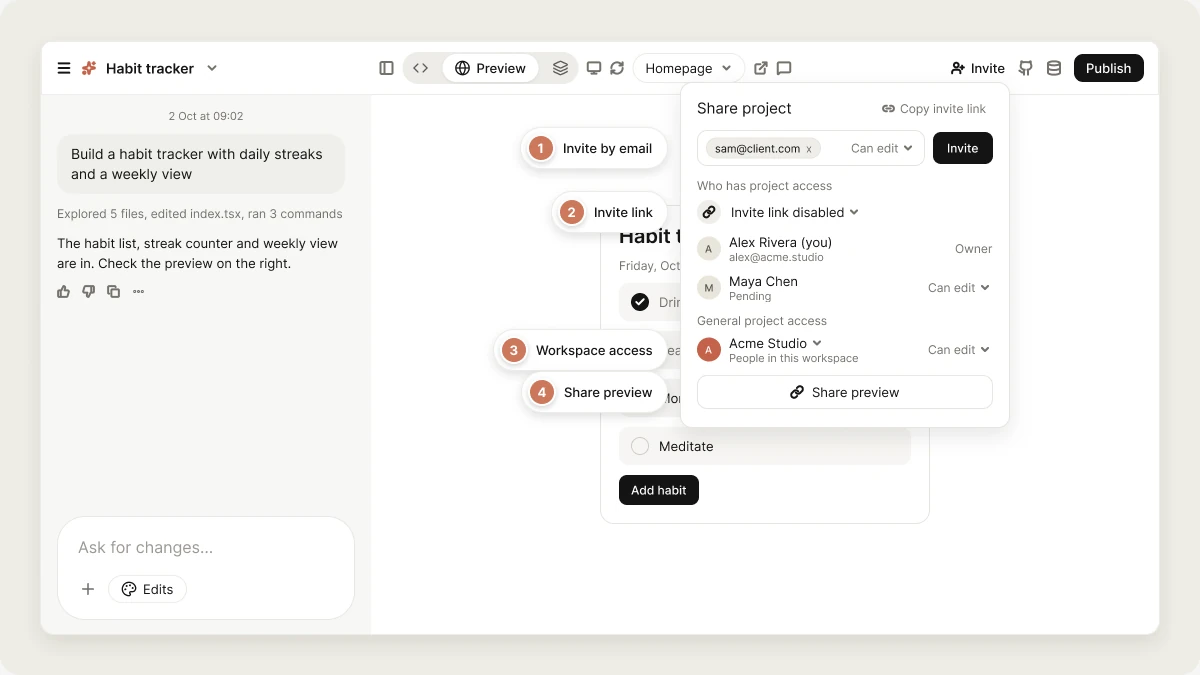
The **Share project** panel is where you open a project up to other people: workspace members, people outside your workspace, or anyone with a link. Open it with the **Invite** button in the editor header. On the mobile layout, it's **Share** in the project actions sheet.
 **Project access and website access are separate.**
* **Project access** controls who can open the project in the editor: its chat, code, and unpublished changes. It's set here and in project settings.
* **Website access** controls who can visit your published app. It's set when you [publish](/features/deploy/publish#who-can-see-your-published-app).
Publishing never gives anyone access to your project in the editor, and changing project access never changes who can visit the live site.
## Add project collaborators
Invite people by email to give them access to this one project. They don't need to be members of your workspace. The project owner and anyone with the project's **Admin** role can invite people.
1. Open the project and click **Invite**.
2. Type one or more email addresses in **Invite by email**. Press Enter, comma or space after each one.
3. Choose the role:
* **Admin**: full access to the project.
* **Can edit** (default): edit the project and its settings.
* **Can view**: view the project but not change it.
**Admin** and **Can view** are part of team roles, which need Pro or above on the project's workspace. On Free, invite people as **Can edit**.
4. Click **Invite**.
Each person gets an email with a link to join. If they don't have a Vibely account yet, they can create one from the invitation.
On Business, workspace owners and admins can control invitations to people outside the workspace with **Settings → Privacy & security → External project collaborators**: **Allow all**, **Editor at most**, **Viewer at most**, or **Not allowed**.
## Share an invite link
An invite link is a single URL for the project. Anyone who opens it and signs in is added as a collaborator with the role you set. It's handy for onboarding a teammate without looking up their email, or for posting in a team channel.
The link is managed in the **Who has project access** section, by the project owner or an Admin:
1. Set the first dropdown to **Anyone with the invite link**.
2. Set the role to **Can edit** (anyone with the link becomes an editor) or **Can view** (anyone with the link becomes a viewer). **Can view** requires Pro or above.
3. Click **Copy invite link** at the top of the panel and share it.
To turn the link off, set the dropdown back to **Invite link disabled**. Only people you invited by email can then join. If you click **Copy invite link** while the link is disabled, Vibely turns it on as **Can edit** and highlights the row so you can see the change.
## Control who can open the project
The **General project access** section of the panel sets whether your whole workspace can open the project:
| Option | Who can open the project | Plan |
| - | - | - |
| **Your workspace name** | Everyone in the workspace, plus people you invited. Choose whether members **Can edit** or **Can view**. | All plans |
| **Restricted** | Only you and people you invite. | Business |
You can also change this from **Project settings → Project access** (**Workspace** or **Restricted**).
Workspace owners and admins set the default for new projects in **Settings → Privacy & security → Default project access**. Changing the default doesn't change existing projects.
### Group access
On Business, the project owner or an Admin can give a [member group](/features/workspace/groups) access to the project: under **Group access**, click **Add a group…**, pick the group, and choose **Admin**, **Editor** or **Viewer**.
## Manage who has access
The **People you invited** list shows everyone invited to the project. People who haven't accepted yet show **Pending**. The project owner and Admins can open the menu on a row to change someone's role or **Remove** them. Everyone else sees the list read-only.
If someone asked for access, their request appears under **Requests** at the top of the panel for the owner and Admins. Click **Accept** or **Decline**, or **Decline all**. See [Request access](/features/collaboration/overview#request-access).
**Project access and website access are separate.**
* **Project access** controls who can open the project in the editor: its chat, code, and unpublished changes. It's set here and in project settings.
* **Website access** controls who can visit your published app. It's set when you [publish](/features/deploy/publish#who-can-see-your-published-app).
Publishing never gives anyone access to your project in the editor, and changing project access never changes who can visit the live site.
## Add project collaborators
Invite people by email to give them access to this one project. They don't need to be members of your workspace. The project owner and anyone with the project's **Admin** role can invite people.
1. Open the project and click **Invite**.
2. Type one or more email addresses in **Invite by email**. Press Enter, comma or space after each one.
3. Choose the role:
* **Admin**: full access to the project.
* **Can edit** (default): edit the project and its settings.
* **Can view**: view the project but not change it.
**Admin** and **Can view** are part of team roles, which need Pro or above on the project's workspace. On Free, invite people as **Can edit**.
4. Click **Invite**.
Each person gets an email with a link to join. If they don't have a Vibely account yet, they can create one from the invitation.
On Business, workspace owners and admins can control invitations to people outside the workspace with **Settings → Privacy & security → External project collaborators**: **Allow all**, **Editor at most**, **Viewer at most**, or **Not allowed**.
## Share an invite link
An invite link is a single URL for the project. Anyone who opens it and signs in is added as a collaborator with the role you set. It's handy for onboarding a teammate without looking up their email, or for posting in a team channel.
The link is managed in the **Who has project access** section, by the project owner or an Admin:
1. Set the first dropdown to **Anyone with the invite link**.
2. Set the role to **Can edit** (anyone with the link becomes an editor) or **Can view** (anyone with the link becomes a viewer). **Can view** requires Pro or above.
3. Click **Copy invite link** at the top of the panel and share it.
To turn the link off, set the dropdown back to **Invite link disabled**. Only people you invited by email can then join. If you click **Copy invite link** while the link is disabled, Vibely turns it on as **Can edit** and highlights the row so you can see the change.
## Control who can open the project
The **General project access** section of the panel sets whether your whole workspace can open the project:
| Option | Who can open the project | Plan |
| - | - | - |
| **Your workspace name** | Everyone in the workspace, plus people you invited. Choose whether members **Can edit** or **Can view**. | All plans |
| **Restricted** | Only you and people you invite. | Business |
You can also change this from **Project settings → Project access** (**Workspace** or **Restricted**).
Workspace owners and admins set the default for new projects in **Settings → Privacy & security → Default project access**. Changing the default doesn't change existing projects.
### Group access
On Business, the project owner or an Admin can give a [member group](/features/workspace/groups) access to the project: under **Group access**, click **Add a group…**, pick the group, and choose **Admin**, **Editor** or **Viewer**.
## Manage who has access
The **People you invited** list shows everyone invited to the project. People who haven't accepted yet show **Pending**. The project owner and Admins can open the menu on a row to change someone's role or **Remove** them. Everyone else sees the list read-only.
If someone asked for access, their request appears under **Requests** at the top of the panel for the owner and Admins. Click **Accept** or **Decline**, or **Decline all**. See [Request access](/features/collaboration/overview#request-access).
 ## Share a preview link
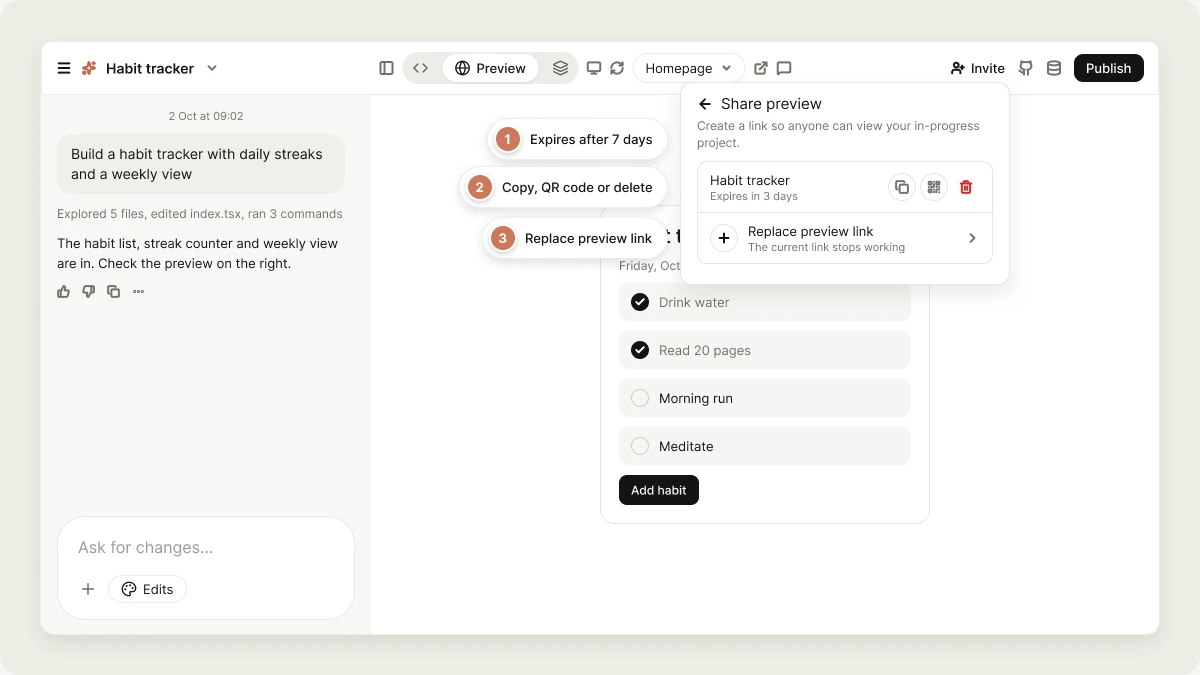
A preview link lets anyone see your app running, without an account and without publishing. It shows the live preview and nothing else: no chat, no code, no settings. Use it to show a client or teammate your work in progress. For a permanent URL, [publish](/features/deploy/publish) instead.
Click **Invite**, then **Share preview**.
Click **Create preview link**. The link opens at `/share/` and shows your project name with the live preview.
Use **Copy preview link**, or **Show QR code** to open it on a phone.
Things to know:
* **One link per project.** Clicking **Replace preview link** creates a new URL and the old one stops working.
* **Links expire after 7 days.** The row shows how long is left (for example, **Expires in 3 days**).
* **The project owner and Admins** can create, replace or delete the link. Other collaborators can copy it or show its QR code.
* **Deleting** the link with **Delete preview link** stops it working for everyone immediately.
* You can create up to 5 links per hour.
When a link no longer works, visitors see **This share link has expired** (ask the project owner or an Admin for a new one) or **Link unavailable** (the link was deleted or the project is gone).
Workspace owners and admins on Business can turn preview links off for the whole workspace in **Settings → Privacy & security → Preview link sharing**.
A preview link of a **mobile** project shows the web preview of your Expo app in a browser. It isn't the real app, and anything that needs native code will be missing. For outside testers, use [TestFlight or Play internal testing](/features/mobile-apps/ship).
## Enable public remixing
Public remixing lets anyone with the project link view the latest version and [remix](/features/projects/remix) it into their own copy. Turn it on in **Project settings → Enable public remixing**, then share the link it shows.
* It doesn't change project access. Nobody gets into your project, its chat, or your editor.
* People who remix get a copy of the project files, so make sure the code contains no secrets or personal data.
* You can turn it off at any time.
## FAQ
An invite link makes the person a collaborator in the editor. They need a Vibely account.
A preview link gives anyone a view-only look at the running app. It doesn't create a collaborator, doesn't need an account, and doesn't show the editor, chat or code.
A preview link shows the latest in-progress version and expires after 7 days. Publishing puts your app on a permanent URL, with its own [website access](/features/deploy/publish#who-can-see-your-published-app) settings.
No. Preview links are view-only. To collect comments, invite the person to the project (**Can view** is enough). See [Comments](/features/collaboration/comments).
Yes. Invite people by email, share an invite link, or send a preview link. On Business, the **External project collaborators** setting controls whether outside people can be invited and at what highest role.
There is no per-project ownership transfer. Anyone with access can [remix](/features/projects/remix) the project into a copy they own, and a workspace admin can move a project to another workspace.
## Related
Roles, permissions and who pays for credits.
Put your app on a permanent URL.
Copy a project into your own workspace.
Workspace defaults for access and sharing.
## Related topics
- [Privacy & security settings](/features/workspace/privacy-security.md)
- [Manage workspace members from the People page](/features/workspace/people.md)
- [Collaborate on a project](/features/collaboration/overview.md)
- [Vibely for Enterprise](/introduction/enterprise.md)
- [Project settings](/features/projects/settings.md)
This documentation is built and hosted on [Mintlify](https://mintlify.com), a developer documentation platform.
## Share a preview link
A preview link lets anyone see your app running, without an account and without publishing. It shows the live preview and nothing else: no chat, no code, no settings. Use it to show a client or teammate your work in progress. For a permanent URL, [publish](/features/deploy/publish) instead.
Click **Invite**, then **Share preview**.
Click **Create preview link**. The link opens at `/share/` and shows your project name with the live preview.
Use **Copy preview link**, or **Show QR code** to open it on a phone.
Things to know:
* **One link per project.** Clicking **Replace preview link** creates a new URL and the old one stops working.
* **Links expire after 7 days.** The row shows how long is left (for example, **Expires in 3 days**).
* **The project owner and Admins** can create, replace or delete the link. Other collaborators can copy it or show its QR code.
* **Deleting** the link with **Delete preview link** stops it working for everyone immediately.
* You can create up to 5 links per hour.
When a link no longer works, visitors see **This share link has expired** (ask the project owner or an Admin for a new one) or **Link unavailable** (the link was deleted or the project is gone).
Workspace owners and admins on Business can turn preview links off for the whole workspace in **Settings → Privacy & security → Preview link sharing**.
A preview link of a **mobile** project shows the web preview of your Expo app in a browser. It isn't the real app, and anything that needs native code will be missing. For outside testers, use [TestFlight or Play internal testing](/features/mobile-apps/ship).
## Enable public remixing
Public remixing lets anyone with the project link view the latest version and [remix](/features/projects/remix) it into their own copy. Turn it on in **Project settings → Enable public remixing**, then share the link it shows.
* It doesn't change project access. Nobody gets into your project, its chat, or your editor.
* People who remix get a copy of the project files, so make sure the code contains no secrets or personal data.
* You can turn it off at any time.
## FAQ
An invite link makes the person a collaborator in the editor. They need a Vibely account.
A preview link gives anyone a view-only look at the running app. It doesn't create a collaborator, doesn't need an account, and doesn't show the editor, chat or code.
A preview link shows the latest in-progress version and expires after 7 days. Publishing puts your app on a permanent URL, with its own [website access](/features/deploy/publish#who-can-see-your-published-app) settings.
No. Preview links are view-only. To collect comments, invite the person to the project (**Can view** is enough). See [Comments](/features/collaboration/comments).
Yes. Invite people by email, share an invite link, or send a preview link. On Business, the **External project collaborators** setting controls whether outside people can be invited and at what highest role.
There is no per-project ownership transfer. Anyone with access can [remix](/features/projects/remix) the project into a copy they own, and a workspace admin can move a project to another workspace.
## Related
Roles, permissions and who pays for credits.
Put your app on a permanent URL.
Copy a project into your own workspace.
Workspace defaults for access and sharing.
## Related topics
- [Privacy & security settings](/features/workspace/privacy-security.md)
- [Manage workspace members from the People page](/features/workspace/people.md)
- [Collaborate on a project](/features/collaboration/overview.md)
- [Vibely for Enterprise](/introduction/enterprise.md)
- [Project settings](/features/projects/settings.md)
This documentation is built and hosted on [Mintlify](https://mintlify.com), a developer documentation platform.