> ## Documentation Index
> Fetch the complete documentation index at: https://docs.vibely.sh/llms.txt
> Use this file to discover all available pages before exploring further.
# Collaborate on a project
> Invite teammates to one project or to your whole workspace, assign roles, and see who is building with you.
Vibely lets you build with other people: a designer, a developer, a client, or anyone else. Everyone works in the same project conversation, sees each other's messages attributed by name and avatar, and sees the preview update as the agent builds.
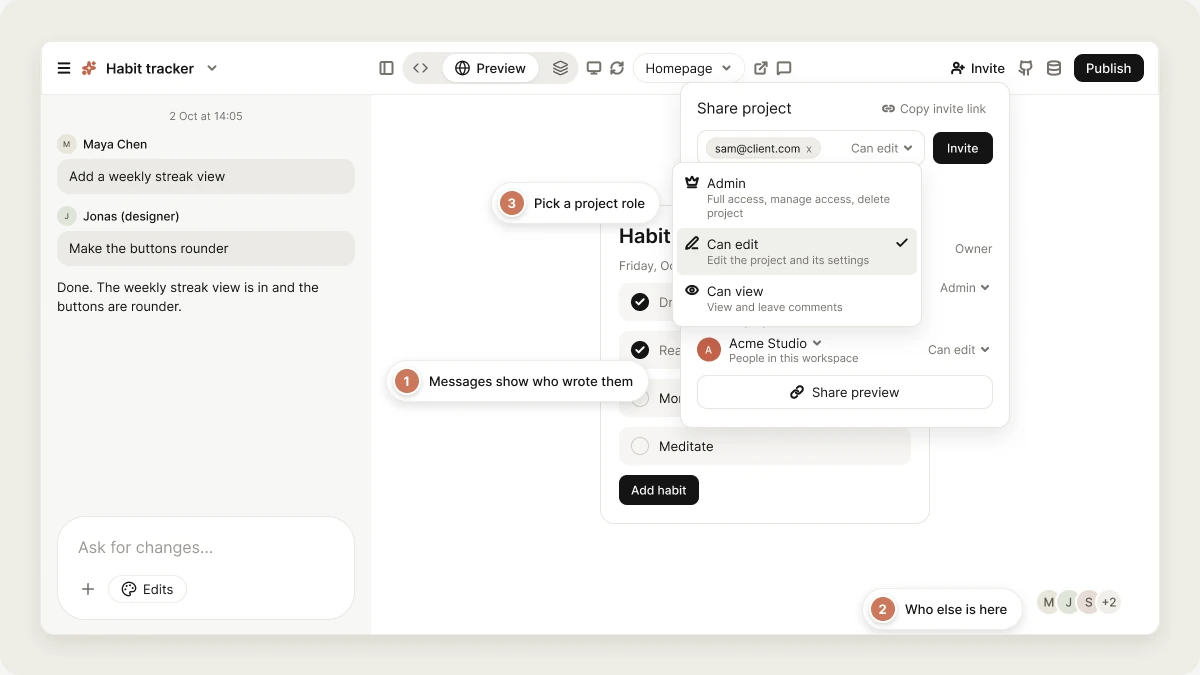 There are two ways to collaborate. You can invite people to **one project**, or to your **whole workspace**.
## Collaborate on a specific project
To invite someone to one project, click **Invite** in the editor header (on narrow windows it shows as an icon only). This opens the **Share project** panel, where you add people by email or share an invite link. See [Share a project](/features/collaboration/sharing) for every option.
The project owner and anyone with the project's **Admin** role can invite people, change their roles, remove them, manage the invite link and preview link, and answer access requests. Other collaborators can open the panel to see who has access.
People invited to a project don't need to be members of your workspace. They get access to that one project and nothing else.
### Who pays for credits
* **Workspace members** spend the credits of the workspace that owns the project, no matter who sends the message.
* **People invited only to the project** (not members of its workspace) spend credits from their own workspace.
Per-person usage on a project is itemized under **Usage by member** in [Project settings](/features/projects/settings). On Business, workspace owners and admins can also cap each member's spend with a credit limit in **Settings → People**.
### See who else is here
When other people have the project open, their avatars appear in the corner of the preview (up to four, then **+N**). Hover to see who is there. There is no shared cursor or simultaneous editing of the same file; everyone shares one conversation and one preview.
### Check your role on a project
Open the project and click **Invite**. The **Who has project access** section lists the owner and everyone you invited, with each person's role. Your workspace role is shown next to your name in **Settings → People**.
### Project roles
When you invite someone to a project, you pick one of three roles. **Admin** and **Can view** are part of team roles, which need Pro or above on the project's workspace; **Can edit** is available on every plan.
| Role | What they can do |
| - | - |
| **Admin** | Full access to the project: everything **Can edit** allows, plus managing who has access and deleting the project. |
| **Can edit** | Edit the project and its settings. The default. |
| **Can view** | View the project but not change it. Viewers can still leave [comments](/features/collaboration/comments). |
A project role uses the same permission ladder as workspace roles: a person invited as **Can edit** has editor permissions on that project, and nothing beyond it. The owner and Admins can delete the project. Ownership itself can't be handed to an Admin.
On Business, a project can also grant access to a whole [member group](/features/workspace/groups) as Admin, Editor or Viewer. When someone has access through more than one route (workspace role, project invite, group), the most generous one applies.
## Collaborate in a workspace
### What is a workspace?
A workspace is your shared space for building. Everyone in it can open the workspace's projects (unless a project is [restricted](/features/collaboration/sharing#control-who-can-open-the-project)), and each member can create their own projects. Your plan belongs to the workspace, and its credits are shared by every member. See [Workspace overview](/features/workspace/overview).
### Add and manage workspace members
Go to **Settings → People** to:
* Invite members by email and pick their role: Admin, Editor or Viewer.
* Change a member's role or remove them.
* On Business, set a monthly credit limit per member.
People who only have access to individual projects appear in the list as **Collaborator**. See [People](/features/workspace/people).
Two workspace policies in **Settings → Privacy & security** can affect invitations: **Restrict workspace invitations** limits invites to allowed email domains, and on Business, **External project collaborators** controls whether people outside the workspace can be invited to projects, and at what highest role.
### Workspace permissions
Workspace roles are **Owner**, **Admin**, **Editor** and **Viewer**. The owner always has full access. For everyone else, **Settings → Permissions** lets owners and admins pick which roles may take each action. The defaults are:
| Action | Admin | Editor | Viewer | Plan |
| - | - | - | - | - |
| Create web app projects | Yes | Yes | No | |
| Create mobile app projects | Yes | Yes | No | Pro |
| Publish to the web | Yes | Yes | No | |
| Submit to App / Play Store | Yes | No | No | Pro |
| Manage connectors | Yes | No | No | |
| Buy / connect domains | Yes | No | No | Pro |
| Manage billing | No | No | No | |
| Invite members | Yes | No | No | |
| Set per-member credit limits | Yes | No | No | Business |
| Read audit logs | Yes | No | No | Business |
## Request access
If someone opens a project they don't have access to, Vibely shows **You don't have access** with a form to request it. They pick **Viewer — can view only** or **Editor — can edit the project**, add an optional message, and click **Request access**.
The project owner gets an email, and the request appears under **Requests** at the top of the **Share project** panel, for the owner and project Admins, with **Accept** and **Decline** buttons (or **Decline all**). The requester's page opens the project automatically as soon as access is granted.
## FAQ
There is no per-project ownership transfer. A workspace admin can move a project to another workspace (on Business this can be turned off with the **Project transfers** setting), and anyone who can open a project can [remix](/features/projects/remix) it into a copy they own. Workspace ownership can be handed over from **Settings → People**.
Everyone shares one conversation. If a build is running, a new message waits in the queue until it finishes.
No. Organize projects with stars and the dashboard filters. See [Find a project](/features/projects/projects-and-folders).
## Related
Invite people, invite links, and preview links.
Pin feedback to the live preview.
Manage workspace members and roles.
Grant project access to a whole team.
## Related topics
- [FAQ](/faq.md)
- [Project comments](/features/collaboration/comments.md)
- [Share a project with internal or external collaborators](/features/collaboration/sharing.md)
- [Sync your project code with GitHub](/integrations/git-sync.md)
- [Vibely workspace](/features/workspace/overview.md)
This documentation is built and hosted on [Mintlify](https://mintlify.com), a developer documentation platform.
There are two ways to collaborate. You can invite people to **one project**, or to your **whole workspace**.
## Collaborate on a specific project
To invite someone to one project, click **Invite** in the editor header (on narrow windows it shows as an icon only). This opens the **Share project** panel, where you add people by email or share an invite link. See [Share a project](/features/collaboration/sharing) for every option.
The project owner and anyone with the project's **Admin** role can invite people, change their roles, remove them, manage the invite link and preview link, and answer access requests. Other collaborators can open the panel to see who has access.
People invited to a project don't need to be members of your workspace. They get access to that one project and nothing else.
### Who pays for credits
* **Workspace members** spend the credits of the workspace that owns the project, no matter who sends the message.
* **People invited only to the project** (not members of its workspace) spend credits from their own workspace.
Per-person usage on a project is itemized under **Usage by member** in [Project settings](/features/projects/settings). On Business, workspace owners and admins can also cap each member's spend with a credit limit in **Settings → People**.
### See who else is here
When other people have the project open, their avatars appear in the corner of the preview (up to four, then **+N**). Hover to see who is there. There is no shared cursor or simultaneous editing of the same file; everyone shares one conversation and one preview.
### Check your role on a project
Open the project and click **Invite**. The **Who has project access** section lists the owner and everyone you invited, with each person's role. Your workspace role is shown next to your name in **Settings → People**.
### Project roles
When you invite someone to a project, you pick one of three roles. **Admin** and **Can view** are part of team roles, which need Pro or above on the project's workspace; **Can edit** is available on every plan.
| Role | What they can do |
| - | - |
| **Admin** | Full access to the project: everything **Can edit** allows, plus managing who has access and deleting the project. |
| **Can edit** | Edit the project and its settings. The default. |
| **Can view** | View the project but not change it. Viewers can still leave [comments](/features/collaboration/comments). |
A project role uses the same permission ladder as workspace roles: a person invited as **Can edit** has editor permissions on that project, and nothing beyond it. The owner and Admins can delete the project. Ownership itself can't be handed to an Admin.
On Business, a project can also grant access to a whole [member group](/features/workspace/groups) as Admin, Editor or Viewer. When someone has access through more than one route (workspace role, project invite, group), the most generous one applies.
## Collaborate in a workspace
### What is a workspace?
A workspace is your shared space for building. Everyone in it can open the workspace's projects (unless a project is [restricted](/features/collaboration/sharing#control-who-can-open-the-project)), and each member can create their own projects. Your plan belongs to the workspace, and its credits are shared by every member. See [Workspace overview](/features/workspace/overview).
### Add and manage workspace members
Go to **Settings → People** to:
* Invite members by email and pick their role: Admin, Editor or Viewer.
* Change a member's role or remove them.
* On Business, set a monthly credit limit per member.
People who only have access to individual projects appear in the list as **Collaborator**. See [People](/features/workspace/people).
Two workspace policies in **Settings → Privacy & security** can affect invitations: **Restrict workspace invitations** limits invites to allowed email domains, and on Business, **External project collaborators** controls whether people outside the workspace can be invited to projects, and at what highest role.
### Workspace permissions
Workspace roles are **Owner**, **Admin**, **Editor** and **Viewer**. The owner always has full access. For everyone else, **Settings → Permissions** lets owners and admins pick which roles may take each action. The defaults are:
| Action | Admin | Editor | Viewer | Plan |
| - | - | - | - | - |
| Create web app projects | Yes | Yes | No | |
| Create mobile app projects | Yes | Yes | No | Pro |
| Publish to the web | Yes | Yes | No | |
| Submit to App / Play Store | Yes | No | No | Pro |
| Manage connectors | Yes | No | No | |
| Buy / connect domains | Yes | No | No | Pro |
| Manage billing | No | No | No | |
| Invite members | Yes | No | No | |
| Set per-member credit limits | Yes | No | No | Business |
| Read audit logs | Yes | No | No | Business |
## Request access
If someone opens a project they don't have access to, Vibely shows **You don't have access** with a form to request it. They pick **Viewer — can view only** or **Editor — can edit the project**, add an optional message, and click **Request access**.
The project owner gets an email, and the request appears under **Requests** at the top of the **Share project** panel, for the owner and project Admins, with **Accept** and **Decline** buttons (or **Decline all**). The requester's page opens the project automatically as soon as access is granted.
## FAQ
There is no per-project ownership transfer. A workspace admin can move a project to another workspace (on Business this can be turned off with the **Project transfers** setting), and anyone who can open a project can [remix](/features/projects/remix) it into a copy they own. Workspace ownership can be handed over from **Settings → People**.
Everyone shares one conversation. If a build is running, a new message waits in the queue until it finishes.
No. Organize projects with stars and the dashboard filters. See [Find a project](/features/projects/projects-and-folders).
## Related
Invite people, invite links, and preview links.
Pin feedback to the live preview.
Manage workspace members and roles.
Grant project access to a whole team.
## Related topics
- [FAQ](/faq.md)
- [Project comments](/features/collaboration/comments.md)
- [Share a project with internal or external collaborators](/features/collaboration/sharing.md)
- [Sync your project code with GitHub](/integrations/git-sync.md)
- [Vibely workspace](/features/workspace/overview.md)
This documentation is built and hosted on [Mintlify](https://mintlify.com), a developer documentation platform.