> ## Documentation Index
> Fetch the complete documentation index at: https://docs.vibely.sh/llms.txt
> Use this file to discover all available pages before exploring further.
# Build secrets
> Store encrypted, workspace-level values that Vibely makes available while your projects install packages and build, such as npm tokens for private registries.
Sometimes a project needs a credential while it installs packages or builds, before the app ever runs. The most common case is an npm token that lets a project install private packages. **Build secrets** solve this: they are encrypted, workspace-level values that are available to package installs and builds in every project in your workspace, and never to your running app.
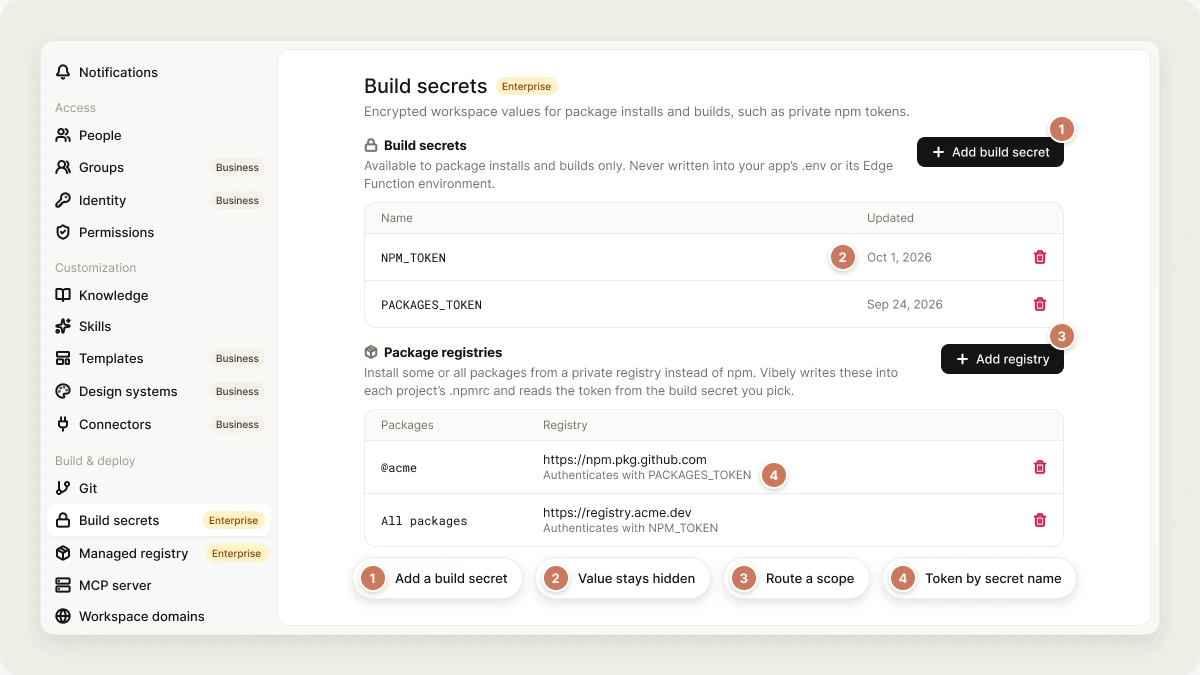 Build secrets are available on the **Enterprise** plan. Workspace owners and admins manage them. Editors can see secret names, so they can reference the right one, but no one can view a value after it's saved.
## Build secrets are not project secrets
Vibely has two kinds of secrets, and they do different jobs:
| | Build secrets (this page) | [Project secrets](/features/backend/secrets) |
| - | - | - |
| **Scope** | The whole workspace | One project |
| **Where to manage** | **Settings → Build secrets** | **Project settings → Secrets** |
| **Available** | While a project installs packages and builds | To your Edge Functions while your app runs |
| **Reaches the published app** | Never | Only server-side, in Edge Functions |
| **Typical values** | npm registry tokens | API keys your app calls, such as a Resend key |
If your running app needs the value, use a project secret. If only the package installer needs it, use a build secret.
The **Settings → Build secrets** page also has a **Secrets** card at the top. Those are workspace secrets for your running apps, shared by every project, and they're available on every plan. The **Build secrets** card below them is the Enterprise feature this page describes.
## What you can use build secrets for
* Install private npm packages from npmjs, GitHub Packages, GitLab, Artifactory, or any registry that speaks the npm protocol.
* Install packages from your workspace's own [managed registry](/features/build/managed-registry).
* Provide any other value that package installs need, shared once across the whole workspace.
## Add a build secret
Only workspace owners and admins can add, change, or delete build secrets.
Go to **Settings → Build secrets**.
In the **Build secrets** card, select **Add build secret**. Enter a name, such as `NPM_TOKEN`, and the value. Your projects reference the secret by this exact name.
Select **Save**. The value is hidden from then on.
The secret is available on the next install in every project in the workspace, including projects whose sandbox is already running.
### Naming rules
| Rule | Detail |
| - | - |
| Characters | Letters, numbers, and underscores, starting with a letter or underscore |
| Name length | Up to 128 characters |
| Value size | Up to 8 KB |
| Count | Up to 50 per workspace |
| Reserved prefixes | `VIBELY_` and `SUPABASE_` |
| Reserved names | `PATH`, `HOME`, `USER`, `SHELL`, `PWD`, `TMPDIR`, `LANG`, `TERM`, `NODE_OPTIONS` |
The reserved names belong to the build environment itself, and the reserved prefixes to values Vibely manages.
If your workspace requires two-factor authentication, saving or deleting a build secret asks for the 6-digit code from your authenticator app first. After you verify, save or delete again. See [Two-factor authentication](/features/account/settings#two-factor-authentication).
## Install private npm packages
A project authenticates to a private registry through its `.npmrc` file, which references the build secret by name. You can set this up once for the whole workspace, or per project.
In **Settings → Build secrets**, go to the **Package registries** card and select **Add registry**. Enter the package scope (for example `@acme`), or leave it empty to route every package through the registry. Enter the **Registry URL** and choose the build secret that holds its **Token**, or **None — this registry is public**.
Vibely then keeps a matching block in every project's `.npmrc`, alongside any settings the project already has.
| Field | Rule |
| - | - |
| Packages (scope) | `@name`, or empty for all packages |
| Registry URL | A full `https` URL with no query string |
| Token | An existing build secret in this workspace |
Ask the agent to configure the project and name the secret:
```text wrap theme={"system"}
Install our private package @acme/ui-components from GitHub Packages. The auth token is in the PACKAGES_TOKEN build secret.
```
The agent writes an `.npmrc` that references the secret with `${...}` syntax, for example:
```ini theme={"system"}
@acme:registry=https://npm.pkg.github.com
//npm.pkg.github.com/:_authToken=${PACKAGES_TOKEN}
```
The token is referenced by name and never written into the file, so it can't end up in your repository.
Vibely can't create or read build secrets for you. A workspace owner or admin always adds the token in settings.
## Update or delete a build secret
To rotate a secret, add it again with the same name and a new value. The old value is replaced permanently. To delete one, select the trash icon next to it and confirm.
Deleting is permanent, and the next install in any project that references the secret fails to authenticate. Update the projects that use it, or add a replacement with the same name, before you delete.
## Mobile builds
Build secrets cover the installs that happen inside Vibely, so a private package resolves while you build and preview a mobile app. They are **not** passed to Expo's cloud builds (EAS Build), which run on Expo's own servers. If a native build needs a private-registry token, also set it as an environment variable in your Expo project. Signing credentials don't go in build secrets either. See [Ship to stores](/features/mobile-apps/ship).
## Limitations
* Build secrets apply to the whole workspace. You can't scope one to a single project.
* Your published app can't read them. Runtime keys belong in [project secrets](/features/backend/secrets).
* The agent can't add, read, or change build secrets.
## Troubleshooting
The registry rejected the token. Check that the secret's name exactly matches the name in the project's `.npmrc` or the registry you added, that the token hasn't expired or been revoked, and that it can read the package.
Only workspace owners and admins can. Editors see the names but can't change them. Ask an owner or admin.
Build secrets are part of the Enterprise plan. See [Plans](/features/account/plans) or [Vibely for Enterprise](/introduction/enterprise).
## FAQ
No. Values are encrypted and never shown again. If you lose a token, generate a new one at the registry that issued it.
No. A build secret is loaded only for the install and build commands that need it, not into every command the agent runs.
Build secrets authenticate your projects against registries. The [managed registry](/features/build/managed-registry) is a private npm registry hosted inside your Vibely workspace. You use a build secret to install from it too.
## Related
Publish private packages inside your workspace.
Keys your running app uses.
How Vibely installs packages.
Everything else admins control.
## Related topics
- [Store API keys with secrets](/features/backend/secrets.md)
- [Workspace admin settings](/features/workspace/admin-settings.md)
- [Glossary](/glossary.md)
- [Managed registry](/features/build/managed-registry.md)
- [Privacy & security settings](/features/workspace/privacy-security.md)
This documentation is built and hosted on [Mintlify](https://mintlify.com), a developer documentation platform.
Build secrets are available on the **Enterprise** plan. Workspace owners and admins manage them. Editors can see secret names, so they can reference the right one, but no one can view a value after it's saved.
## Build secrets are not project secrets
Vibely has two kinds of secrets, and they do different jobs:
| | Build secrets (this page) | [Project secrets](/features/backend/secrets) |
| - | - | - |
| **Scope** | The whole workspace | One project |
| **Where to manage** | **Settings → Build secrets** | **Project settings → Secrets** |
| **Available** | While a project installs packages and builds | To your Edge Functions while your app runs |
| **Reaches the published app** | Never | Only server-side, in Edge Functions |
| **Typical values** | npm registry tokens | API keys your app calls, such as a Resend key |
If your running app needs the value, use a project secret. If only the package installer needs it, use a build secret.
The **Settings → Build secrets** page also has a **Secrets** card at the top. Those are workspace secrets for your running apps, shared by every project, and they're available on every plan. The **Build secrets** card below them is the Enterprise feature this page describes.
## What you can use build secrets for
* Install private npm packages from npmjs, GitHub Packages, GitLab, Artifactory, or any registry that speaks the npm protocol.
* Install packages from your workspace's own [managed registry](/features/build/managed-registry).
* Provide any other value that package installs need, shared once across the whole workspace.
## Add a build secret
Only workspace owners and admins can add, change, or delete build secrets.
Go to **Settings → Build secrets**.
In the **Build secrets** card, select **Add build secret**. Enter a name, such as `NPM_TOKEN`, and the value. Your projects reference the secret by this exact name.
Select **Save**. The value is hidden from then on.
The secret is available on the next install in every project in the workspace, including projects whose sandbox is already running.
### Naming rules
| Rule | Detail |
| - | - |
| Characters | Letters, numbers, and underscores, starting with a letter or underscore |
| Name length | Up to 128 characters |
| Value size | Up to 8 KB |
| Count | Up to 50 per workspace |
| Reserved prefixes | `VIBELY_` and `SUPABASE_` |
| Reserved names | `PATH`, `HOME`, `USER`, `SHELL`, `PWD`, `TMPDIR`, `LANG`, `TERM`, `NODE_OPTIONS` |
The reserved names belong to the build environment itself, and the reserved prefixes to values Vibely manages.
If your workspace requires two-factor authentication, saving or deleting a build secret asks for the 6-digit code from your authenticator app first. After you verify, save or delete again. See [Two-factor authentication](/features/account/settings#two-factor-authentication).
## Install private npm packages
A project authenticates to a private registry through its `.npmrc` file, which references the build secret by name. You can set this up once for the whole workspace, or per project.
In **Settings → Build secrets**, go to the **Package registries** card and select **Add registry**. Enter the package scope (for example `@acme`), or leave it empty to route every package through the registry. Enter the **Registry URL** and choose the build secret that holds its **Token**, or **None — this registry is public**.
Vibely then keeps a matching block in every project's `.npmrc`, alongside any settings the project already has.
| Field | Rule |
| - | - |
| Packages (scope) | `@name`, or empty for all packages |
| Registry URL | A full `https` URL with no query string |
| Token | An existing build secret in this workspace |
Ask the agent to configure the project and name the secret:
```text wrap theme={"system"}
Install our private package @acme/ui-components from GitHub Packages. The auth token is in the PACKAGES_TOKEN build secret.
```
The agent writes an `.npmrc` that references the secret with `${...}` syntax, for example:
```ini theme={"system"}
@acme:registry=https://npm.pkg.github.com
//npm.pkg.github.com/:_authToken=${PACKAGES_TOKEN}
```
The token is referenced by name and never written into the file, so it can't end up in your repository.
Vibely can't create or read build secrets for you. A workspace owner or admin always adds the token in settings.
## Update or delete a build secret
To rotate a secret, add it again with the same name and a new value. The old value is replaced permanently. To delete one, select the trash icon next to it and confirm.
Deleting is permanent, and the next install in any project that references the secret fails to authenticate. Update the projects that use it, or add a replacement with the same name, before you delete.
## Mobile builds
Build secrets cover the installs that happen inside Vibely, so a private package resolves while you build and preview a mobile app. They are **not** passed to Expo's cloud builds (EAS Build), which run on Expo's own servers. If a native build needs a private-registry token, also set it as an environment variable in your Expo project. Signing credentials don't go in build secrets either. See [Ship to stores](/features/mobile-apps/ship).
## Limitations
* Build secrets apply to the whole workspace. You can't scope one to a single project.
* Your published app can't read them. Runtime keys belong in [project secrets](/features/backend/secrets).
* The agent can't add, read, or change build secrets.
## Troubleshooting
The registry rejected the token. Check that the secret's name exactly matches the name in the project's `.npmrc` or the registry you added, that the token hasn't expired or been revoked, and that it can read the package.
Only workspace owners and admins can. Editors see the names but can't change them. Ask an owner or admin.
Build secrets are part of the Enterprise plan. See [Plans](/features/account/plans) or [Vibely for Enterprise](/introduction/enterprise).
## FAQ
No. Values are encrypted and never shown again. If you lose a token, generate a new one at the registry that issued it.
No. A build secret is loaded only for the install and build commands that need it, not into every command the agent runs.
Build secrets authenticate your projects against registries. The [managed registry](/features/build/managed-registry) is a private npm registry hosted inside your Vibely workspace. You use a build secret to install from it too.
## Related
Publish private packages inside your workspace.
Keys your running app uses.
How Vibely installs packages.
Everything else admins control.
## Related topics
- [Store API keys with secrets](/features/backend/secrets.md)
- [Workspace admin settings](/features/workspace/admin-settings.md)
- [Glossary](/glossary.md)
- [Managed registry](/features/build/managed-registry.md)
- [Privacy & security settings](/features/workspace/privacy-security.md)
This documentation is built and hosted on [Mintlify](https://mintlify.com), a developer documentation platform.