> ## Documentation Index
> Fetch the complete documentation index at: https://docs.vibely.sh/llms.txt
> Use this file to discover all available pages before exploring further.
# Add users and authentication
> Add sign-up and sign-in to your app with Supabase Auth, choose sign-in methods, and set the redirect URLs your published app needs.
Your app signs users in with **Supabase Auth**, in the Supabase project linked to your Vibely project. Ask Vibely to add login, and it generates the sign-up and sign-in screens, wires them to Supabase, handles sessions, and protects each user's data with row-level security. For example:
```text wrap theme={"system"}
Add login to the app. Require login before accessing the dashboard. Also add a "Sign in with Google" button.
```
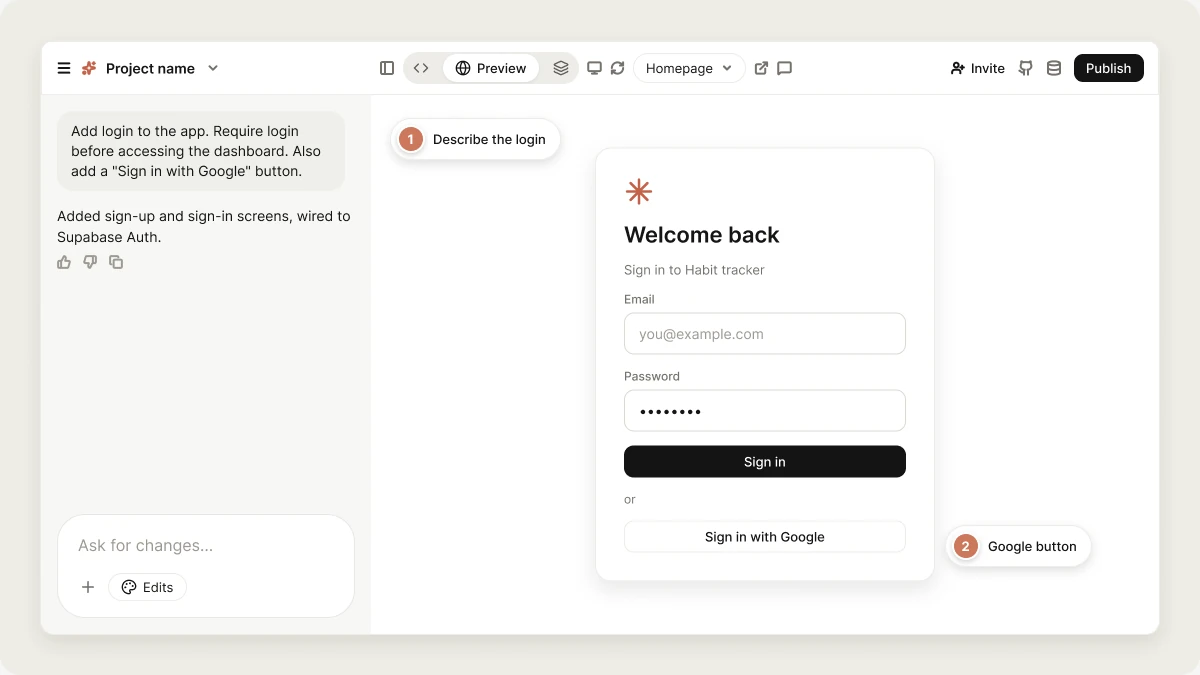 Authentication needs a linked Supabase project. If your project isn't linked yet, the agent shows a **Connect Supabase** card and builds the screens in the meantime. See [Supabase](/integrations/supabase).
Your app's users and sign-in settings live in **your** Supabase project. Vibely has no user list or auth settings screen of its own for your app's users. You manage them in the Supabase dashboard, or ask the agent in the project chat.
## Manage users
Open your project in Supabase (database icon in the editor header → **Open Dashboard**) and go to **Authentication → Users**. There you can see everyone who signed up, invite or create users, and delete accounts.
## Sign-in methods
Supabase supports several sign-in methods. Turn each one on in your Supabase dashboard under **Authentication → Providers**, then ask the agent to add the matching button or screen to your app. The agent writes the UI and the `supabase.auth` calls, but it can't enable a provider for you, because that step needs your own credentials with the provider.
| Method | Supabase setup guide | Notes |
| - | - | - |
| Email and password | [Email auth](https://supabase.com/docs/guides/auth/auth-email) | On by default. Email confirmation is on by default too. |
| Magic link | [Magic link](https://supabase.com/docs/guides/auth/auth-magic-link) | Passwordless email. Same redirect rules as confirmation emails. |
| Google | [Google](https://supabase.com/docs/guides/auth/social-login/auth-google) | Needs a Google Cloud OAuth client. |
| Apple | [Apple](https://supabase.com/docs/guides/auth/social-login/auth-apple) | Needs a paid Apple Developer account. Required on iOS if you offer any other social login. See [Mobile authentication](/features/mobile-apps/auth). |
| Microsoft | [Azure](https://supabase.com/docs/guides/auth/social-login/auth-azure) | Listed as "Azure" in Supabase's provider list. |
| Phone (SMS) | [Phone login](https://supabase.com/docs/guides/auth/phone-login) | Needs a paid SMS provider such as Twilio, Vonage, or MessageBird. |
| SAML SSO | [SAML SSO](https://supabase.com/docs/guides/auth/enterprise-sso/auth-sso-saml) | For enterprise identity providers such as Okta or Microsoft Entra ID. Configured with the Supabase CLI. |
For social sign-in, the provider's own console (Google Cloud, Apple Developer, Azure) also needs a redirect URI. Use your Supabase callback, `https://.supabase.co/auth/v1/callback`, not your app's URL. Each Supabase guide above gives the exact value.
## Sign-up controls
Who can join your app is controlled in Supabase under **Authentication → Sign In / Providers**. You can turn off new sign-ups while keeping sign-in for existing users, or allow anonymous sessions for flows such as guest checkout. Ask the agent to build the UI that goes with your choice, for example an invite-only screen.
## Site URL and redirect URLs
This is where Vibely apps most often break, and it is the one thing Supabase can't fill in for you. Vibely does not update these settings automatically when you publish or add a domain, so set them yourself.
Every redirect-based flow (Google and other social sign-in, magic links, email confirmation, password reset) sends the user away and back. Supabase only completes the round trip if the return URL is on its allowlist. Your app has more than one hostname, and each needs to be there.
| Your URL | Where it comes from | Who can load it |
| - | - | - |
| `.vibelyagent.com` | The preview, live as soon as the project is | You, through the Vibely editor |
| `.vibelyagent.com` or your custom domain | [Publishing](/features/deploy/publish) | Your users |
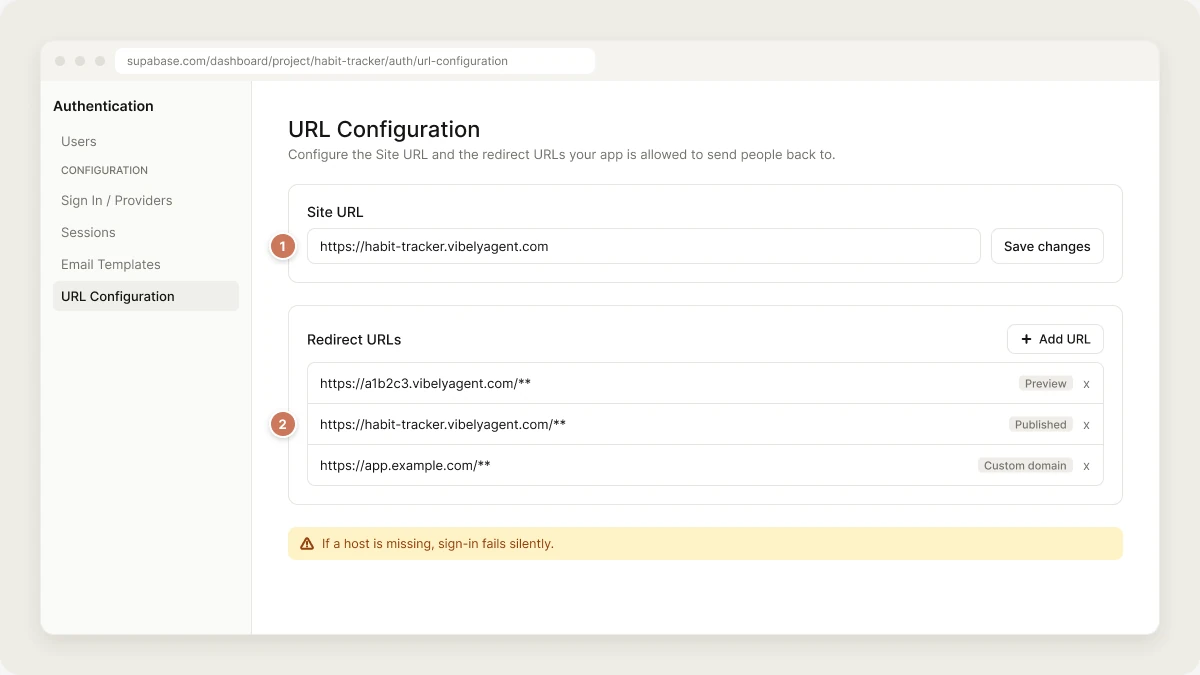
Set both in your Supabase dashboard under **Authentication → URL Configuration**:
Set it to your **published** URL, `https://.vibelyagent.com`, or your [custom domain](/features/deploy/custom-domain) once it's verified. Supabase uses this as the fallback when a flow has no explicit redirect, most importantly for the link inside a confirmation email. If it points at the preview, your users get confirmation emails that open a URL only you can load.
Add one entry per host your app is served from:
```text theme={"system"}
https://.vibelyagent.com/**
https://.vibelyagent.com/**
https://app.example.com/**
```
Keep all of them. Removing the preview entry breaks sign-in while you build, and removing the published entry breaks it for your users.
Changing your slug, adding a custom domain, or moving off `vibelyagent.com` all produce a new hostname that Supabase doesn't know about. Add it before you announce the new URL.
If your published app's hostname is missing from the allowlist, **every redirect fails silently**. The user completes the Google screen and lands back on your login page, signed out, with no error. If sign-in works for you in the preview but not for your users, this is almost always why.
## Auth emails
Sign-up confirmation, password reset, magic link, and invite emails are sent by Supabase. A new Supabase project sends them through a shared email service with a low hourly limit, meant for testing. Before you launch, set up your own SMTP provider in Supabase under **Project Settings → Authentication → SMTP Settings**, or confirmation emails stop arriving under real sign-up volume. Email templates are edited in Supabase under **Authentication → Email Templates**.
Authentication needs a linked Supabase project. If your project isn't linked yet, the agent shows a **Connect Supabase** card and builds the screens in the meantime. See [Supabase](/integrations/supabase).
Your app's users and sign-in settings live in **your** Supabase project. Vibely has no user list or auth settings screen of its own for your app's users. You manage them in the Supabase dashboard, or ask the agent in the project chat.
## Manage users
Open your project in Supabase (database icon in the editor header → **Open Dashboard**) and go to **Authentication → Users**. There you can see everyone who signed up, invite or create users, and delete accounts.
## Sign-in methods
Supabase supports several sign-in methods. Turn each one on in your Supabase dashboard under **Authentication → Providers**, then ask the agent to add the matching button or screen to your app. The agent writes the UI and the `supabase.auth` calls, but it can't enable a provider for you, because that step needs your own credentials with the provider.
| Method | Supabase setup guide | Notes |
| - | - | - |
| Email and password | [Email auth](https://supabase.com/docs/guides/auth/auth-email) | On by default. Email confirmation is on by default too. |
| Magic link | [Magic link](https://supabase.com/docs/guides/auth/auth-magic-link) | Passwordless email. Same redirect rules as confirmation emails. |
| Google | [Google](https://supabase.com/docs/guides/auth/social-login/auth-google) | Needs a Google Cloud OAuth client. |
| Apple | [Apple](https://supabase.com/docs/guides/auth/social-login/auth-apple) | Needs a paid Apple Developer account. Required on iOS if you offer any other social login. See [Mobile authentication](/features/mobile-apps/auth). |
| Microsoft | [Azure](https://supabase.com/docs/guides/auth/social-login/auth-azure) | Listed as "Azure" in Supabase's provider list. |
| Phone (SMS) | [Phone login](https://supabase.com/docs/guides/auth/phone-login) | Needs a paid SMS provider such as Twilio, Vonage, or MessageBird. |
| SAML SSO | [SAML SSO](https://supabase.com/docs/guides/auth/enterprise-sso/auth-sso-saml) | For enterprise identity providers such as Okta or Microsoft Entra ID. Configured with the Supabase CLI. |
For social sign-in, the provider's own console (Google Cloud, Apple Developer, Azure) also needs a redirect URI. Use your Supabase callback, `https://.supabase.co/auth/v1/callback`, not your app's URL. Each Supabase guide above gives the exact value.
## Sign-up controls
Who can join your app is controlled in Supabase under **Authentication → Sign In / Providers**. You can turn off new sign-ups while keeping sign-in for existing users, or allow anonymous sessions for flows such as guest checkout. Ask the agent to build the UI that goes with your choice, for example an invite-only screen.
## Site URL and redirect URLs
This is where Vibely apps most often break, and it is the one thing Supabase can't fill in for you. Vibely does not update these settings automatically when you publish or add a domain, so set them yourself.
Every redirect-based flow (Google and other social sign-in, magic links, email confirmation, password reset) sends the user away and back. Supabase only completes the round trip if the return URL is on its allowlist. Your app has more than one hostname, and each needs to be there.
| Your URL | Where it comes from | Who can load it |
| - | - | - |
| `.vibelyagent.com` | The preview, live as soon as the project is | You, through the Vibely editor |
| `.vibelyagent.com` or your custom domain | [Publishing](/features/deploy/publish) | Your users |
Set both in your Supabase dashboard under **Authentication → URL Configuration**:
Set it to your **published** URL, `https://.vibelyagent.com`, or your [custom domain](/features/deploy/custom-domain) once it's verified. Supabase uses this as the fallback when a flow has no explicit redirect, most importantly for the link inside a confirmation email. If it points at the preview, your users get confirmation emails that open a URL only you can load.
Add one entry per host your app is served from:
```text theme={"system"}
https://.vibelyagent.com/**
https://.vibelyagent.com/**
https://app.example.com/**
```
Keep all of them. Removing the preview entry breaks sign-in while you build, and removing the published entry breaks it for your users.
Changing your slug, adding a custom domain, or moving off `vibelyagent.com` all produce a new hostname that Supabase doesn't know about. Add it before you announce the new URL.
If your published app's hostname is missing from the allowlist, **every redirect fails silently**. The user completes the Google screen and lands back on your login page, signed out, with no error. If sign-in works for you in the preview but not for your users, this is almost always why.
## Auth emails
Sign-up confirmation, password reset, magic link, and invite emails are sent by Supabase. A new Supabase project sends them through a shared email service with a low hourly limit, meant for testing. Before you launch, set up your own SMTP provider in Supabase under **Project Settings → Authentication → SMTP Settings**, or confirmation emails stop arriving under real sign-up volume. Email templates are edited in Supabase under **Authentication → Email Templates**.
 ## Leaked password protection
When a Supabase project is linked, the project's [Security view](/features/security/project-view) shows a **Leaked password protection** switch. Turn it on to block sign-ups and password changes that use passwords found in known breaches (Have I Been Pwned).
## Protect data, not just screens
Hiding a page behind a session check is UI, not security. Your Supabase anon key ships in your app's bundle, so anyone can call your Supabase project directly. Access control lives in **row-level security policies** on your tables, which the agent writes for every table it creates. See [Security best practices](/features/security/best-practices), and don't turn RLS off in production.
## Test your sign-in flow
Run these on your **published** URL, in a private window, with an email you haven't used before:
1. **Sign up.** The account appears under **Authentication → Users** in Supabase.
2. **Confirm.** The emailed link opens your app on the published domain, signed in.
3. **Sign in.** Sign out, then sign back in with each method you enabled.
4. **Sign out.** The session is gone after a hard refresh.
If step 2 or 3 drops you back at the login screen, recheck [Site URL and redirect URLs](#site-url-and-redirect-urls).
## FAQ
Your published URL or custom domain is missing from **Redirect URLs** in Supabase, or the **Site URL** still points at the preview. Add the published hostname under **Authentication → URL Configuration**. If you use Google or another social provider, the provider's console only needs your Supabase callback URL, which doesn't change when your app's domain does.
The agent adds the button and the sign-in code. Enabling the provider and entering your Google OAuth client ID and secret happens in your Supabase dashboard, because those are your credentials with Google.
No. A remix copies project files only. Users live in your Supabase project, which isn't copied.
Native sign-in doesn't use a web redirect, and the App Store has rules about which providers you offer. See [Mobile authentication](/features/mobile-apps/auth).
## Related
Link the Supabase project your app signs users in with.
Native sign-in and App Store requirements.
RLS policies that keep each user's data private.
Get the published URL to add to your redirect list.
## Related topics
- [Authentication in mobile apps](/features/mobile-apps/auth.md)
- [Connector authentication and credentials](/integrations/connectors/auth.md)
- [API authentication](/api-reference/auth.md)
- [Manage workspace identity and user provisioning](/features/workspace/identity.md)
- [Publish your app as an MCP server](/features/grow/agent-integrations.md)
This documentation is built and hosted on [Mintlify](https://mintlify.com), a developer documentation platform.
## Leaked password protection
When a Supabase project is linked, the project's [Security view](/features/security/project-view) shows a **Leaked password protection** switch. Turn it on to block sign-ups and password changes that use passwords found in known breaches (Have I Been Pwned).
## Protect data, not just screens
Hiding a page behind a session check is UI, not security. Your Supabase anon key ships in your app's bundle, so anyone can call your Supabase project directly. Access control lives in **row-level security policies** on your tables, which the agent writes for every table it creates. See [Security best practices](/features/security/best-practices), and don't turn RLS off in production.
## Test your sign-in flow
Run these on your **published** URL, in a private window, with an email you haven't used before:
1. **Sign up.** The account appears under **Authentication → Users** in Supabase.
2. **Confirm.** The emailed link opens your app on the published domain, signed in.
3. **Sign in.** Sign out, then sign back in with each method you enabled.
4. **Sign out.** The session is gone after a hard refresh.
If step 2 or 3 drops you back at the login screen, recheck [Site URL and redirect URLs](#site-url-and-redirect-urls).
## FAQ
Your published URL or custom domain is missing from **Redirect URLs** in Supabase, or the **Site URL** still points at the preview. Add the published hostname under **Authentication → URL Configuration**. If you use Google or another social provider, the provider's console only needs your Supabase callback URL, which doesn't change when your app's domain does.
The agent adds the button and the sign-in code. Enabling the provider and entering your Google OAuth client ID and secret happens in your Supabase dashboard, because those are your credentials with Google.
No. A remix copies project files only. Users live in your Supabase project, which isn't copied.
Native sign-in doesn't use a web redirect, and the App Store has rules about which providers you offer. See [Mobile authentication](/features/mobile-apps/auth).
## Related
Link the Supabase project your app signs users in with.
Native sign-in and App Store requirements.
RLS policies that keep each user's data private.
Get the published URL to add to your redirect list.
## Related topics
- [Authentication in mobile apps](/features/mobile-apps/auth.md)
- [Connector authentication and credentials](/integrations/connectors/auth.md)
- [API authentication](/api-reference/auth.md)
- [Manage workspace identity and user provisioning](/features/workspace/identity.md)
- [Publish your app as an MCP server](/features/grow/agent-integrations.md)
This documentation is built and hosted on [Mintlify](https://mintlify.com), a developer documentation platform.