> ## Documentation Index
> Fetch the complete documentation index at: https://docs.vibely.sh/llms.txt
> Use this file to discover all available pages before exploring further.
# Add AI features to your app
> Add chatbots, summaries, image and video generation, search, and voice to your app with Vibely AI. No provider API keys required.
Adding AI to an app usually means choosing a provider, creating API keys, setting up billing, and wiring model calls into your backend. **Vibely AI** handles that for you: describe the AI feature you want, and Vibely builds it against a managed gateway to hosted models from Google, OpenAI, and Anthropic.
 These AI features run inside **your app**. They are separate from the Vibely agent that builds and edits your project, and the models listed here are not the ones the agent uses to write your code.
Some examples:
* **Chatbots and assistants**: conversational helpers inside your app.
* **Summaries**: condense long text, documents, or transcripts.
* **Document Q\&A and semantic search**: find content by meaning, not keywords.
* **Classification and extraction**: tag, route, or pull structured data out of text.
* **Translation**: serve users in more than one language.
* **Image generation**: create images from a prompt.
* **Video generation**: create short clips from a prompt.
* **Text-to-speech and speech-to-text**: read content aloud, transcribe voice notes, add dictation.
## Before you start
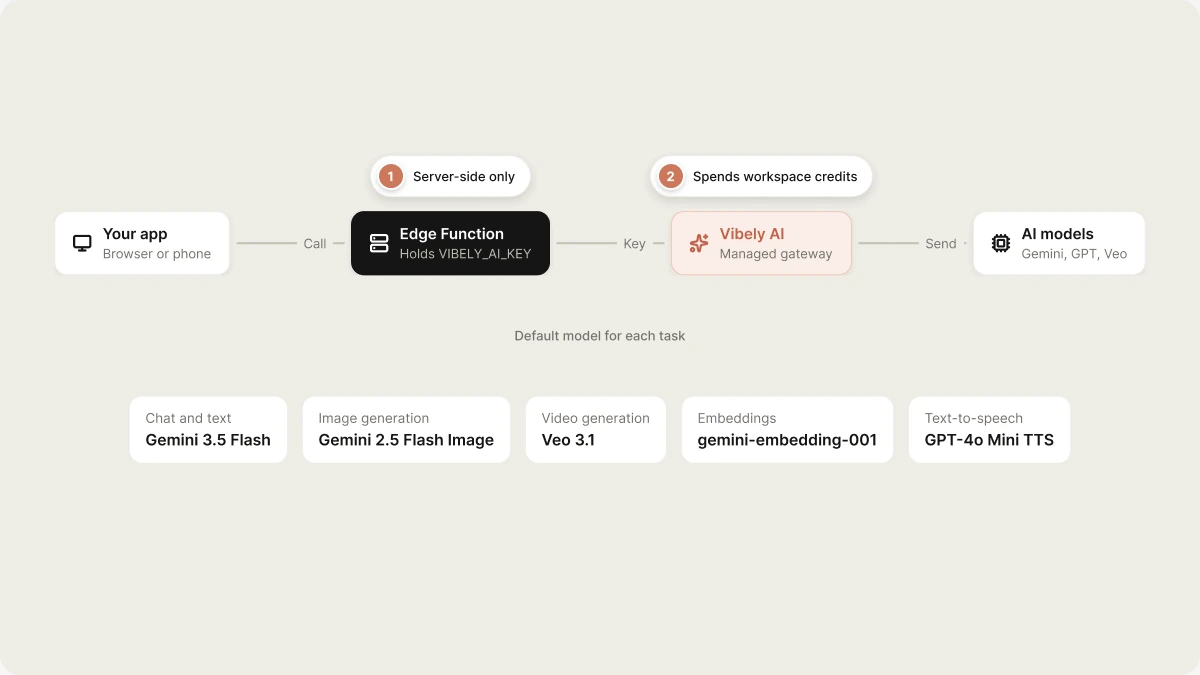
Vibely AI calls are made from a Supabase Edge Function, never from the browser or the phone, so your prompts and credentials stay server-side. That means your project needs a linked [Supabase](/integrations/supabase) project first. If it isn't linked, the agent shows the **Connect Supabase** card instead of writing a function that can't run.
## Add an AI feature
Ask for the feature in the project chat. For example:
```text wrap theme={"system"}
Add a chat assistant to the help page that answers questions from our help articles.
```
```text wrap theme={"system"}
Summarize each uploaded PDF into three bullet points on the record page.
```
The agent writes an Edge Function that calls Vibely AI and wires your app to it. It never asks you for an OpenAI, Anthropic, or Gemini key.
## How it works
* **API key.** Vibely creates and manages a key for each project. It's injected into your Edge Functions as `VIBELY_AI_KEY`, together with `VIBELY_AI_URL`. You never create or paste it. Both names are [reserved secrets](/features/backend/secrets#reserved-names).
* **Server-side calls.** Your Edge Function calls the gateway with that key. Nothing in your app's bundle can reach it directly.
* **Streaming.** Chat supports streaming responses over server-sent events, so replies appear as they are generated. On mobile, where React Native has no built-in `EventSource`, the agent uses the non-streaming chat endpoint.
## Supported models
When you ask for an AI feature, you can name a model or describe what you want and let the agent pick. Each kind of task has a default:
| Task | Default model | Also available |
| - | - | - |
| Chat and text | Gemini 3.5 Flash | Gemini 3 Flash (preview), Gemini 3.1 Pro (preview), Gemini 3.1 Flash Lite, Gemini 2.5 Pro, Gemini 2.5 Flash, Gemini 2.5 Flash Lite, GPT-5.6 Luna, GPT-5.5 Pro, GPT-5.5, GPT-5.4, GPT-5.4 Mini, GPT-5.4 Nano, GPT-5, GPT-5 Mini, GPT-5 Nano, Claude Sonnet 4.6, Claude Haiku 4.5 |
| Image generation | Gemini 2.5 Flash Image | GPT Image 1 |
| Video generation | Veo 3.1 | |
| Embeddings (search and RAG) | gemini-embedding-001 | gemini-embedding-2, text-embedding-3-small, text-embedding-3-large |
| Text-to-speech | GPT-4o Mini TTS | TTS-1, TTS-1 HD |
| Speech-to-text | GPT-4o Mini Transcribe | GPT-4o Transcribe, Whisper |
To see the current list with descriptions, open **Manage → Vibely AI** in the editor and select **All AI models**. The catalog can change, so ask the agent to check it rather than hard-coding a model name you read somewhere else.
### Choosing a model
| Use case | Start with | Switch when |
| - | - | - |
| Chat and assistants | Gemini 3.5 Flash | You need deeper reasoning or longer context: try Gemini 3.1 Pro, GPT-5.5, or Claude Sonnet 4.6. |
| High-volume, simple text | Gemini 3.1 Flash Lite or GPT-5.4 Nano | Accuracy matters more than cost. |
| Semantic search | gemini-embedding-001 | You're standardizing on OpenAI: use text-embedding-3-small. |
| Voice | GPT-4o Mini TTS and GPT-4o Mini Transcribe | You need higher accuracy on transcription: GPT-4o Transcribe. |
## Monitor AI usage and activity
Open **Manage → Vibely AI** in the editor to see how your app's AI features are doing. Choose a time range (**Last 1 hour**, **Last 24 hours**, **Last 7 days**, or **Last 30 days**) and the dashboard shows:
* **Credits used**: what the app's AI requests cost in the range.
* **AI requests**: how many calls were made.
* **Success rate**: the share that completed successfully.
* **Avg. time**: how long a request took on average.
Below that, the activity list shows each request with its run name, model, credits, and time. Expand a request to see what was sent and returned, or the error if it failed.
The same view shows your available credit balance, usage broken down by project, and **Set a limit for your AI credits**, which opens **Settings → Usage limits & alerts**. For the whole workspace, go to **Settings → Vibely AI**.
## Usage and pricing
AI features in your deployed app spend from your workspace's **shared credits**, the same balance a build turn uses. There is no separate AI balance to fund. Each call is billed after it completes, based on what it actually used, such as tokens, generated images, seconds of video, or audio. Rates follow the underlying provider's cost for the model you use.
Usage is billed to the workspace that owns the project, not to whoever is using the app. See [Credits](/features/account/credits) for how credits work and how to add more.
## Limits and errors
Build your app to handle these responses gracefully. Showing "AI is temporarily unavailable" instead of a crash is the difference between a hiccup and a broken app.
| Status | Code | What it means |
| - | - | - |
| `402` | `OUT_OF_CREDITS` | The workspace is out of credits. Add credits in settings. |
| `402` | `USAGE_LIMIT_REACHED` | A workspace, project, or member usage limit was reached. |
| `403` | `AI_CONNECTOR_DISABLED` | Vibely AI is turned off for the workspace. |
| `429` | | Too many requests per minute. Wait for the time in the `Retry-After` header before retrying. |
| `401` | | The API key is missing, invalid, or revoked. |
Rate limits are measured in requests per minute and depend on your plan. Other limits: text-to-speech input is capped at 4,096 characters, and speech-to-text accepts up to 25 MB of audio per request, so split long recordings.
## Turn Vibely AI on or off
Vibely AI is on by default. Workspace owners and admins manage it in **Customize → Connectors → Vibely AI**:
* **Disable for workspace** turns it off for every project.
* The permission setting controls what the agent does when a request calls for AI:
| Permission | Effect |
| - | - |
| **Always allow** | The agent adds AI features when asked. |
| **Ask each time** | The agent confirms with you before adding an AI feature. |
| **Never allow** | The agent won't add AI features. |
Disabling Vibely AI affects live apps, not just new builds. Every published app that calls it starts receiving `403 AI_CONNECTOR_DISABLED` immediately. Turning it back on restores them.
## FAQ
No. Vibely AI powers AI features inside the apps you build. The agent is what builds and edits your project.
No. Vibely creates and manages the key for each project.
Not through Vibely AI, which always bills your workspace credits. If you want usage billed to your own provider account, ask the agent to call the provider directly from an Edge Function, with your key stored as a [secret](/features/backend/secrets).
Yes. Calls go through an Edge Function on mobile too, never from the app itself, because anything in an app binary can be read. Voice features are especially useful on a phone.
AI requests return `402 OUT_OF_CREDITS` until you add credits.
## Related
Required first: AI calls run from an Edge Function.
How the shared credit balance works.
Use your own provider key from an Edge Function.
Control which connectors your workspace can use.
## Related topics
- [Add payments to your app](/features/grow/payments.md)
- [Optimize your app for SEO and AI search](/features/grow/seo.md)
- [Credits and usage](/features/account/credits.md)
- [Add a backend with Supabase](/integrations/supabase.md)
- [Publish your app as an MCP server](/features/grow/agent-integrations.md)
This documentation is built and hosted on [Mintlify](https://mintlify.com), a developer documentation platform.
These AI features run inside **your app**. They are separate from the Vibely agent that builds and edits your project, and the models listed here are not the ones the agent uses to write your code.
Some examples:
* **Chatbots and assistants**: conversational helpers inside your app.
* **Summaries**: condense long text, documents, or transcripts.
* **Document Q\&A and semantic search**: find content by meaning, not keywords.
* **Classification and extraction**: tag, route, or pull structured data out of text.
* **Translation**: serve users in more than one language.
* **Image generation**: create images from a prompt.
* **Video generation**: create short clips from a prompt.
* **Text-to-speech and speech-to-text**: read content aloud, transcribe voice notes, add dictation.
## Before you start
Vibely AI calls are made from a Supabase Edge Function, never from the browser or the phone, so your prompts and credentials stay server-side. That means your project needs a linked [Supabase](/integrations/supabase) project first. If it isn't linked, the agent shows the **Connect Supabase** card instead of writing a function that can't run.
## Add an AI feature
Ask for the feature in the project chat. For example:
```text wrap theme={"system"}
Add a chat assistant to the help page that answers questions from our help articles.
```
```text wrap theme={"system"}
Summarize each uploaded PDF into three bullet points on the record page.
```
The agent writes an Edge Function that calls Vibely AI and wires your app to it. It never asks you for an OpenAI, Anthropic, or Gemini key.
## How it works
* **API key.** Vibely creates and manages a key for each project. It's injected into your Edge Functions as `VIBELY_AI_KEY`, together with `VIBELY_AI_URL`. You never create or paste it. Both names are [reserved secrets](/features/backend/secrets#reserved-names).
* **Server-side calls.** Your Edge Function calls the gateway with that key. Nothing in your app's bundle can reach it directly.
* **Streaming.** Chat supports streaming responses over server-sent events, so replies appear as they are generated. On mobile, where React Native has no built-in `EventSource`, the agent uses the non-streaming chat endpoint.
## Supported models
When you ask for an AI feature, you can name a model or describe what you want and let the agent pick. Each kind of task has a default:
| Task | Default model | Also available |
| - | - | - |
| Chat and text | Gemini 3.5 Flash | Gemini 3 Flash (preview), Gemini 3.1 Pro (preview), Gemini 3.1 Flash Lite, Gemini 2.5 Pro, Gemini 2.5 Flash, Gemini 2.5 Flash Lite, GPT-5.6 Luna, GPT-5.5 Pro, GPT-5.5, GPT-5.4, GPT-5.4 Mini, GPT-5.4 Nano, GPT-5, GPT-5 Mini, GPT-5 Nano, Claude Sonnet 4.6, Claude Haiku 4.5 |
| Image generation | Gemini 2.5 Flash Image | GPT Image 1 |
| Video generation | Veo 3.1 | |
| Embeddings (search and RAG) | gemini-embedding-001 | gemini-embedding-2, text-embedding-3-small, text-embedding-3-large |
| Text-to-speech | GPT-4o Mini TTS | TTS-1, TTS-1 HD |
| Speech-to-text | GPT-4o Mini Transcribe | GPT-4o Transcribe, Whisper |
To see the current list with descriptions, open **Manage → Vibely AI** in the editor and select **All AI models**. The catalog can change, so ask the agent to check it rather than hard-coding a model name you read somewhere else.
### Choosing a model
| Use case | Start with | Switch when |
| - | - | - |
| Chat and assistants | Gemini 3.5 Flash | You need deeper reasoning or longer context: try Gemini 3.1 Pro, GPT-5.5, or Claude Sonnet 4.6. |
| High-volume, simple text | Gemini 3.1 Flash Lite or GPT-5.4 Nano | Accuracy matters more than cost. |
| Semantic search | gemini-embedding-001 | You're standardizing on OpenAI: use text-embedding-3-small. |
| Voice | GPT-4o Mini TTS and GPT-4o Mini Transcribe | You need higher accuracy on transcription: GPT-4o Transcribe. |
## Monitor AI usage and activity
Open **Manage → Vibely AI** in the editor to see how your app's AI features are doing. Choose a time range (**Last 1 hour**, **Last 24 hours**, **Last 7 days**, or **Last 30 days**) and the dashboard shows:
* **Credits used**: what the app's AI requests cost in the range.
* **AI requests**: how many calls were made.
* **Success rate**: the share that completed successfully.
* **Avg. time**: how long a request took on average.
Below that, the activity list shows each request with its run name, model, credits, and time. Expand a request to see what was sent and returned, or the error if it failed.
The same view shows your available credit balance, usage broken down by project, and **Set a limit for your AI credits**, which opens **Settings → Usage limits & alerts**. For the whole workspace, go to **Settings → Vibely AI**.
## Usage and pricing
AI features in your deployed app spend from your workspace's **shared credits**, the same balance a build turn uses. There is no separate AI balance to fund. Each call is billed after it completes, based on what it actually used, such as tokens, generated images, seconds of video, or audio. Rates follow the underlying provider's cost for the model you use.
Usage is billed to the workspace that owns the project, not to whoever is using the app. See [Credits](/features/account/credits) for how credits work and how to add more.
## Limits and errors
Build your app to handle these responses gracefully. Showing "AI is temporarily unavailable" instead of a crash is the difference between a hiccup and a broken app.
| Status | Code | What it means |
| - | - | - |
| `402` | `OUT_OF_CREDITS` | The workspace is out of credits. Add credits in settings. |
| `402` | `USAGE_LIMIT_REACHED` | A workspace, project, or member usage limit was reached. |
| `403` | `AI_CONNECTOR_DISABLED` | Vibely AI is turned off for the workspace. |
| `429` | | Too many requests per minute. Wait for the time in the `Retry-After` header before retrying. |
| `401` | | The API key is missing, invalid, or revoked. |
Rate limits are measured in requests per minute and depend on your plan. Other limits: text-to-speech input is capped at 4,096 characters, and speech-to-text accepts up to 25 MB of audio per request, so split long recordings.
## Turn Vibely AI on or off
Vibely AI is on by default. Workspace owners and admins manage it in **Customize → Connectors → Vibely AI**:
* **Disable for workspace** turns it off for every project.
* The permission setting controls what the agent does when a request calls for AI:
| Permission | Effect |
| - | - |
| **Always allow** | The agent adds AI features when asked. |
| **Ask each time** | The agent confirms with you before adding an AI feature. |
| **Never allow** | The agent won't add AI features. |
Disabling Vibely AI affects live apps, not just new builds. Every published app that calls it starts receiving `403 AI_CONNECTOR_DISABLED` immediately. Turning it back on restores them.
## FAQ
No. Vibely AI powers AI features inside the apps you build. The agent is what builds and edits your project.
No. Vibely creates and manages the key for each project.
Not through Vibely AI, which always bills your workspace credits. If you want usage billed to your own provider account, ask the agent to call the provider directly from an Edge Function, with your key stored as a [secret](/features/backend/secrets).
Yes. Calls go through an Edge Function on mobile too, never from the app itself, because anything in an app binary can be read. Voice features are especially useful on a phone.
AI requests return `402 OUT_OF_CREDITS` until you add credits.
## Related
Required first: AI calls run from an Edge Function.
How the shared credit balance works.
Use your own provider key from an Edge Function.
Control which connectors your workspace can use.
## Related topics
- [Add payments to your app](/features/grow/payments.md)
- [Optimize your app for SEO and AI search](/features/grow/seo.md)
- [Credits and usage](/features/account/credits.md)
- [Add a backend with Supabase](/integrations/supabase.md)
- [Publish your app as an MCP server](/features/grow/agent-integrations.md)
This documentation is built and hosted on [Mintlify](https://mintlify.com), a developer documentation platform.