> ## Documentation Index
> Fetch the complete documentation index at: https://docs.vibely.sh/llms.txt
> Use this file to discover all available pages before exploring further.
# Account settings
> Manage your profile, sign-in methods, devices, notifications, and account deletion.
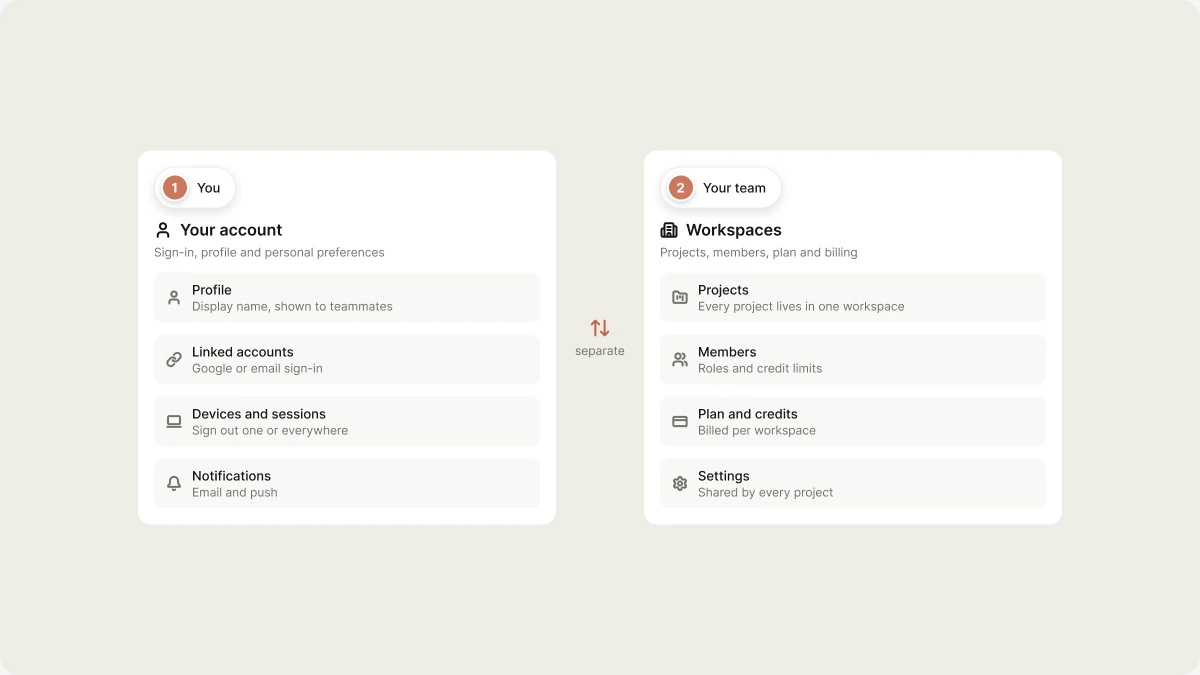
Your account is you: your sign-in, your profile, and your personal preferences. It's separate from your workspaces, which hold projects, members, and billing. See [Vibely workspace](/features/workspace/overview).
 Open your account settings from the account menu (your avatar in the sidebar) → **Settings** → **Account**, or go to [vibely.sh/settings/account](https://vibely.sh/settings/account).
## Profile
Control how you appear in Vibely.
| Setting | Description |
| - | - |
| **Profile** | Your display name, shown wherever you appear in Vibely: the People page, project collaborators, comments. Up to 100 characters. Click **Save** after changing it. If you signed in with Google, the page notes it. |
| **Email** | The email address on your account. It's read-only. |
Your avatar comes from your sign-in provider.
## Linked accounts
The sign-in method on your account, such as Google or email, with its email address. The **Primary** badge marks the method tied to your account's email.
To reset the password for an email and password sign-in, use **Forgot password?** on the sign-in page. See [Reset your password](/introduction/create-account#reset-your-password). If you sign in with Google, manage your password in your Google account.
## Devices and sessions
**Settings → Devices** lists everywhere your account is signed in: each session's browser, operating system, IP address, and when it was last active. Your current session is marked **This device**, and a session that passed a two-factor check shows **MFA**.
* **Sign out** of a single session you don't recognize.
* **Sign out everywhere** to end every session, including this one. You'll need to sign in again on each device.
If you lose a device or think someone else has access to your account, use **Sign out everywhere**, then reset your password.
## Notifications
**Settings → Notifications** controls how Vibely reaches you:
| Setting | Description |
| - | - |
| **Email notifications** | Important updates, such as credits, invitations, and app store status, sent to your inbox. On by default. |
| **Push notifications** | Notifications on this device even when Vibely is closed. On iPhone, add Vibely to your Home Screen first. Not every browser supports them. |
## Two-factor authentication
Two-factor authentication asks for a 6-digit code from an authenticator app, such as Google Authenticator or 1Password, when you sign in. Set it up from the **Two-factor authentication** card in **Settings → Account**.
Next to **Authenticator app**, click **Set up**.
Scan the QR code with your authenticator app. If you can't scan it, type in the key shown under the code instead.
Enter the 6-digit code your app shows and click **Verify and turn on**. The card shows **On** once two-factor authentication is active.
From then on, Vibely asks for a code after you sign in. **Not now** dismisses the prompt, but your session doesn't count as verified until you enter a code.
To remove two-factor authentication, click **Turn off**. Only a session that has already verified a code can remove it. If turning it off fails, sign out, sign back in with your code, then try again.
If your workspace turns on [Require two-factor authentication](/features/workspace/privacy-security#require-two-factor-authentication), publishing and changing build secrets ask for your code. Enter it, then try the action again. If your company uses SSO, your identity provider may also ask for its own multi-factor check. See [SSO](/features/workspace/sso).
## AI model training
Whether your data can be used to improve Vibely's models is a **workspace** setting, not an account setting, and it's off by default. See [Allow data collection for training](/features/workspace/privacy-security#allow-data-collection-for-training).
## Delete account
**Delete account**, at the bottom of the page, permanently deletes your account, the workspaces you own, and their projects. It happens immediately and can't be undone. See [Delete your account](/features/account/deleting).
## Related
Sign up, sign in, and reset your password.
What's removed and what to do first.
Create, join, switch, and leave workspaces.
Plans are per workspace, not per account.
## Related topics
- [Create an account](/introduction/create-account.md)
- [Project settings](/features/projects/settings.md)
- [Delete your account](/features/account/deleting.md)
- [Dashboard overview](/introduction/dashboard.md)
- [Find your way around the editor](/features/projects/editor.md)
This documentation is built and hosted on [Mintlify](https://mintlify.com), a developer documentation platform.
Open your account settings from the account menu (your avatar in the sidebar) → **Settings** → **Account**, or go to [vibely.sh/settings/account](https://vibely.sh/settings/account).
## Profile
Control how you appear in Vibely.
| Setting | Description |
| - | - |
| **Profile** | Your display name, shown wherever you appear in Vibely: the People page, project collaborators, comments. Up to 100 characters. Click **Save** after changing it. If you signed in with Google, the page notes it. |
| **Email** | The email address on your account. It's read-only. |
Your avatar comes from your sign-in provider.
## Linked accounts
The sign-in method on your account, such as Google or email, with its email address. The **Primary** badge marks the method tied to your account's email.
To reset the password for an email and password sign-in, use **Forgot password?** on the sign-in page. See [Reset your password](/introduction/create-account#reset-your-password). If you sign in with Google, manage your password in your Google account.
## Devices and sessions
**Settings → Devices** lists everywhere your account is signed in: each session's browser, operating system, IP address, and when it was last active. Your current session is marked **This device**, and a session that passed a two-factor check shows **MFA**.
* **Sign out** of a single session you don't recognize.
* **Sign out everywhere** to end every session, including this one. You'll need to sign in again on each device.
If you lose a device or think someone else has access to your account, use **Sign out everywhere**, then reset your password.
## Notifications
**Settings → Notifications** controls how Vibely reaches you:
| Setting | Description |
| - | - |
| **Email notifications** | Important updates, such as credits, invitations, and app store status, sent to your inbox. On by default. |
| **Push notifications** | Notifications on this device even when Vibely is closed. On iPhone, add Vibely to your Home Screen first. Not every browser supports them. |
## Two-factor authentication
Two-factor authentication asks for a 6-digit code from an authenticator app, such as Google Authenticator or 1Password, when you sign in. Set it up from the **Two-factor authentication** card in **Settings → Account**.
Next to **Authenticator app**, click **Set up**.
Scan the QR code with your authenticator app. If you can't scan it, type in the key shown under the code instead.
Enter the 6-digit code your app shows and click **Verify and turn on**. The card shows **On** once two-factor authentication is active.
From then on, Vibely asks for a code after you sign in. **Not now** dismisses the prompt, but your session doesn't count as verified until you enter a code.
To remove two-factor authentication, click **Turn off**. Only a session that has already verified a code can remove it. If turning it off fails, sign out, sign back in with your code, then try again.
If your workspace turns on [Require two-factor authentication](/features/workspace/privacy-security#require-two-factor-authentication), publishing and changing build secrets ask for your code. Enter it, then try the action again. If your company uses SSO, your identity provider may also ask for its own multi-factor check. See [SSO](/features/workspace/sso).
## AI model training
Whether your data can be used to improve Vibely's models is a **workspace** setting, not an account setting, and it's off by default. See [Allow data collection for training](/features/workspace/privacy-security#allow-data-collection-for-training).
## Delete account
**Delete account**, at the bottom of the page, permanently deletes your account, the workspaces you own, and their projects. It happens immediately and can't be undone. See [Delete your account](/features/account/deleting).
## Related
Sign up, sign in, and reset your password.
What's removed and what to do first.
Create, join, switch, and leave workspaces.
Plans are per workspace, not per account.
## Related topics
- [Create an account](/introduction/create-account.md)
- [Project settings](/features/projects/settings.md)
- [Delete your account](/features/account/deleting.md)
- [Dashboard overview](/introduction/dashboard.md)
- [Find your way around the editor](/features/projects/editor.md)
This documentation is built and hosted on [Mintlify](https://mintlify.com), a developer documentation platform.