> ## Documentation Index
> Fetch the complete documentation index at: https://docs.vibely.sh/llms.txt
> Use this file to discover all available pages before exploring further.
# Credits and usage
> How Vibely credits work, what uses them, how to check your usage, and how to add more.
Credits are how Vibely measures AI usage. Every workspace has one shared credit balance, and every project in the workspace draws from it, whoever sends the message.
 Credits are charged in two places: when the agent finishes working on a message, and when an app you published uses AI through Vibely AI. Publishing, hosting, previews, and mobile builds don't use credits.
## What is a credit?
A credit is Vibely's unit of AI spend. What a message costs depends on the work it actually took: how much the agent had to read and write, which AI models it used, and which tools it ran. A short, focused change costs little; a large feature across many files costs more.
## Where credits come from
| Source | How it works |
| - | - |
| **Daily credits** (every plan) | 5 free credits a day for every workspace, on Free, Pro and Business. They reset at 00:00 UTC and don't roll over. |
| **Monthly credits** | Your plan's allowance, granted each billing period: 5 on Free, 100 to 800 on Pro and Business depending on your tier. See [Subscription plans](/features/account/plans). |
| **Rollover** (Pro and Business) | Whatever's left when your plan renews rolls over and stays usable until the end of the next period. |
| **Top-ups** (Pro and Business) | Credits you buy on top of your plan, once or automatically, at your plan's rate: $5 per 20 credits on Pro, $10 per 20 on Business. See [Credit top-ups](#credit-top-ups). |
| **Bonuses and refunds** | Promotional, referral, or support-issued credits. |
On Free, the monthly refresh tops your balance back **up to** 5 rather than adding 5, so unused free credits don't pile up.
### The order credits are spent in
1. **Daily credits first.** They expire at midnight UTC, so they're used before anything else.
2. **Then rollover.** It expires at the end of the current period.
3. **Then your monthly credits.**
4. **Top-ups last.** Credits you bought are kept the longest.
Your balance never goes below zero.
## What uses credits
### Agent messages
Every message the agent works on, in Build, Plan, or chat, is priced when it finishes:
* The charge is based on the **measured AI model cost** of the work, converted to credits at one fixed rate per \$1 of model cost, so a message that takes twice the work costs twice the credits.
* Every charged message costs **at least 0.5 credits**. There's no upper cap; a genuinely large job costs what it took.
* Some tools add a small fixed amount per use:
| Tool | Credits per use |
| - | - |
| Image generation | 0.1 |
| Video generation | 0.2 |
| Web page scraping | 0.05 |
| Web search | 0.02 |
| Image search | 0.02 |
**Focused requests cost less.** The more of your project the agent has to read and change, the more a message costs. Asking for one clear change at a time keeps each message small.
### Messages that are free
| Message | Cost |
| - | - |
| **Try to fix** on an error card, and other automatic fixes the agent makes to its own errors | Free |
| A Build message where the agent ran no tools (no changes, nothing executed) | Free |
A chat answer is still charged, even though it runs no tools.
### AI features in your published apps
When an app you built uses AI through [Vibely AI](/features/backend/ai), each AI request is charged to the same workspace balance, based on that request's model cost. See per-project AI usage in **Settings → Vibely AI**.
### What doesn't use credits
| Action | Credits |
| - | - |
| Publishing, re-publishing, and custom domains | 0 |
| Hosting your published apps | 0 |
| Previews, sandbox time, and restarts | 0 |
| Storage, file uploads, and number of projects | 0 |
| Mobile builds, over-the-air updates, and store submissions | 0 |
## View your credit balance
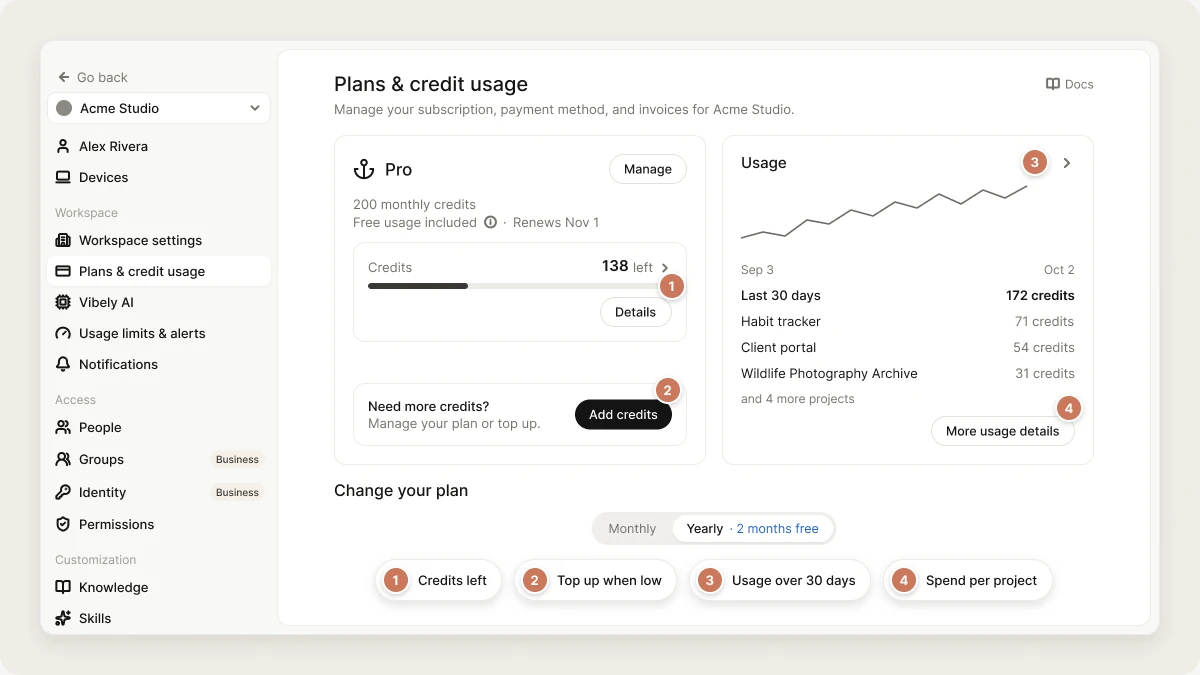
**Settings → Plans & credit usage** shows your plan, your monthly credits, when they renew, and how many credits you have left. Click **Details** for the full breakdown, or **Add credits** to buy more.
## Check your usage
**Settings → Usage** shows:
* **Monthly credits**: credits used against your allowance, and when they reset.
* **Credits used by project**: how much each project used in the current billing cycle.
* **Credits used by teammate**: how much each member used in the current billing cycle.
* **Extra usage**: the balance of credits you've bought, with **Buy more**.
The **People** page also shows each member's usage this month and all time. See [People](/features/workspace/people#the-member-list).
## Usage limits and alerts
**Settings → Usage limits & alerts** lets owners and admins cap spending before it surprises anyone. All limits are monthly.
### Usage limits
Click **Create limit**, pick what it applies to, set a credit amount, and choose what happens when it's reached:
| Applies to | Target |
| - | - |
| Workspace | **Every member** |
| Projects | **Each web project** or **Each mobile project** |
| Users | A named member |
| Action | When the limit is reached |
| - | - |
| **Block** | New messages are refused until next month. |
| **Notify** | Owners and admins are notified, and work continues. |
You can pause and resume a limit without deleting it. Filter to **Only limits that have been reached** to see what's been hit.
### Balance alerts
Add a threshold under **Balance alerts**, and owners and admins are notified when the workspace balance drops to it.
### Requests
The **Requests** tab lists the 50 most recent credit-using requests in the workspace, which is the spending your limits are measured against.
## Credit top-ups
Top-ups are for Pro and Business workspaces, priced at the same rate as your plan's credits:
| Plan | Price | Per credit |
| - | - | - |
| Pro | \$5 per 20 credits | \$0.25 |
| Business | \$10 per 20 credits | \$0.50 |
Sizes, one-off or automatic: 20, 40, 100, 200, 400, 1,000, or 2,000 credits. The price is set when you buy: a one-off top-up at checkout, an auto top-up when its 24-hour notice is sent, and an automatic charge is never more than that notice said.
An auto top-up you set up before October 2026 keeps its saved amount and is never charged more than it was at the old price (\$0.30 a credit, or less where your plan's rate is lower) until you pick a new amount.
Top-up credits aren't reset when your plan renews. They're spent after your daily, rollover and monthly credits, and expire 12 months after your most recent top-up.
### One-time top-up
1. Go to **Settings → Plans & credit usage** and click **Add credits** (or **Settings → Usage → Buy more**).
2. Under **One-off top-up**, click **Buy once**.
3. Choose an amount and complete payment.
The credits are added to your balance right away.
### Auto top-up
Auto top-up buys credits automatically when your balance runs low, so long builds don't stop. Only the workspace owner can turn it on.
1. Click **Add credits**, then **Set up** under **Auto top-up**.
2. Choose the **Top-up amount**.
3. Choose **When my balance falls below**: 25, 50, or 100 credits.
4. Choose a **Monthly spend limit**, or **No limit**.
5. Enter your **Phone number** (our payment provider needs it to save a card for automatic charges), then click **Enable auto top-up** and save your card.
Saving your card buys your first top-up. Your bank asks you to approve the price of the auto top-up you chose, and every automatic charge is exactly that price. If one card pays for both your credits and AI Access auto top-ups, the approval is the larger of the two.
To raise the top-up amount above what your card is approved for, click **Re-approve card**: your bank approves the new price, and that top-up is bought. Until you do, auto top-up doesn't charge, and Vibely tells you once. Lowering the amount never needs a re-approval.
Vibely notifies you before each automatic charge, and the charge is taken about 24 hours later. The **Monthly spend limit** covers a rolling 30-day period: once it's reached, auto top-up stops until the period ends or you raise the limit, and you're told once per period. If a charge fails, the auto top-up setting shows the error and a **Retry** button. Turn auto top-up off at any time.
If your card was issued in India, RBI rules limit how much it can be charged automatically, so auto top-up offers amounts up to \$170. Buy larger amounts as a [one-time top-up](#one-time-top-up).
## What happens when you run out of credits
* **Before a message starts**, Vibely checks your balance. Any positive balance lets the message run.
* **If you run out mid-build**, the work pauses instead of stopping. You'll see a card with **I've added credits** and **Wrap up**. Add credits and choose **I've added credits** to continue exactly where it left off, without paying twice for the work already done. Choose **Wrap up** to keep what was built so far and continue later with a new message.
* **At zero**, new messages are refused and Vibely opens the upgrade dialog so you can add credits or upgrade.
A member who hits their personal limit, or a project that hits a **Block** limit, is refused in the same way until next month, while the rest of the workspace keeps working.
## Mobile builds don't use credits
Only the agent message that changed your app's code uses credits. Everything after that is free:
| Action | Credits |
| - | - |
| The message that changed your app's code | Charged as normal |
| The build it starts | 0 |
| A build that fails and runs again | 0 |
| An over-the-air update | 0 |
| Submitting to TestFlight or Google Play testing | 0 |
| A store submission Apple or Google rejects, and resubmitting | 0 |
Apple ($99 per year) and Google ($25 one-time) charge for their developer programs. Those accounts are yours, not Vibely's. See [Ship your mobile app](/features/mobile-apps/ship).
## FAQ
Cost follows how much the agent had to read. A question about a large project can mean reading a lot of code. Point it at the specific page or file you mean.
Yes. Plan and chat messages are priced the same way as Build messages, by the work they took.
No. **Try to fix** on an error card, and fixes the agent makes to its own errors, are free.
Daily credits expire at 00:00 UTC each day. Rollover lasts until the end of the next billing period. Top-ups expire 12 months after your most recent top-up. On Free, the monthly balance tops back up to 5 each month instead of accumulating.
Yes. Set a default monthly limit per member in **Settings → Workspace settings**, individual limits in **People** (Business), or a limit on **Every member** in **Usage limits & alerts**.
US dollars only.
## Related
Compare plans and credit tiers.
AI features in the apps you build.
Every entitlement error, including running out of credits.
Per-member usage and credit limits.
## Related topics
- [Subscription plans](/features/account/plans.md)
- [Workspace admin settings](/features/workspace/admin-settings.md)
- [Manage workspace members from the People page](/features/workspace/people.md)
- [FAQ](/faq.md)
- [Vibely workspace](/features/workspace/overview.md)
This documentation is built and hosted on [Mintlify](https://mintlify.com), a developer documentation platform.
Credits are charged in two places: when the agent finishes working on a message, and when an app you published uses AI through Vibely AI. Publishing, hosting, previews, and mobile builds don't use credits.
## What is a credit?
A credit is Vibely's unit of AI spend. What a message costs depends on the work it actually took: how much the agent had to read and write, which AI models it used, and which tools it ran. A short, focused change costs little; a large feature across many files costs more.
## Where credits come from
| Source | How it works |
| - | - |
| **Daily credits** (every plan) | 5 free credits a day for every workspace, on Free, Pro and Business. They reset at 00:00 UTC and don't roll over. |
| **Monthly credits** | Your plan's allowance, granted each billing period: 5 on Free, 100 to 800 on Pro and Business depending on your tier. See [Subscription plans](/features/account/plans). |
| **Rollover** (Pro and Business) | Whatever's left when your plan renews rolls over and stays usable until the end of the next period. |
| **Top-ups** (Pro and Business) | Credits you buy on top of your plan, once or automatically, at your plan's rate: $5 per 20 credits on Pro, $10 per 20 on Business. See [Credit top-ups](#credit-top-ups). |
| **Bonuses and refunds** | Promotional, referral, or support-issued credits. |
On Free, the monthly refresh tops your balance back **up to** 5 rather than adding 5, so unused free credits don't pile up.
### The order credits are spent in
1. **Daily credits first.** They expire at midnight UTC, so they're used before anything else.
2. **Then rollover.** It expires at the end of the current period.
3. **Then your monthly credits.**
4. **Top-ups last.** Credits you bought are kept the longest.
Your balance never goes below zero.
## What uses credits
### Agent messages
Every message the agent works on, in Build, Plan, or chat, is priced when it finishes:
* The charge is based on the **measured AI model cost** of the work, converted to credits at one fixed rate per \$1 of model cost, so a message that takes twice the work costs twice the credits.
* Every charged message costs **at least 0.5 credits**. There's no upper cap; a genuinely large job costs what it took.
* Some tools add a small fixed amount per use:
| Tool | Credits per use |
| - | - |
| Image generation | 0.1 |
| Video generation | 0.2 |
| Web page scraping | 0.05 |
| Web search | 0.02 |
| Image search | 0.02 |
**Focused requests cost less.** The more of your project the agent has to read and change, the more a message costs. Asking for one clear change at a time keeps each message small.
### Messages that are free
| Message | Cost |
| - | - |
| **Try to fix** on an error card, and other automatic fixes the agent makes to its own errors | Free |
| A Build message where the agent ran no tools (no changes, nothing executed) | Free |
A chat answer is still charged, even though it runs no tools.
### AI features in your published apps
When an app you built uses AI through [Vibely AI](/features/backend/ai), each AI request is charged to the same workspace balance, based on that request's model cost. See per-project AI usage in **Settings → Vibely AI**.
### What doesn't use credits
| Action | Credits |
| - | - |
| Publishing, re-publishing, and custom domains | 0 |
| Hosting your published apps | 0 |
| Previews, sandbox time, and restarts | 0 |
| Storage, file uploads, and number of projects | 0 |
| Mobile builds, over-the-air updates, and store submissions | 0 |
## View your credit balance
**Settings → Plans & credit usage** shows your plan, your monthly credits, when they renew, and how many credits you have left. Click **Details** for the full breakdown, or **Add credits** to buy more.
## Check your usage
**Settings → Usage** shows:
* **Monthly credits**: credits used against your allowance, and when they reset.
* **Credits used by project**: how much each project used in the current billing cycle.
* **Credits used by teammate**: how much each member used in the current billing cycle.
* **Extra usage**: the balance of credits you've bought, with **Buy more**.
The **People** page also shows each member's usage this month and all time. See [People](/features/workspace/people#the-member-list).
## Usage limits and alerts
**Settings → Usage limits & alerts** lets owners and admins cap spending before it surprises anyone. All limits are monthly.
### Usage limits
Click **Create limit**, pick what it applies to, set a credit amount, and choose what happens when it's reached:
| Applies to | Target |
| - | - |
| Workspace | **Every member** |
| Projects | **Each web project** or **Each mobile project** |
| Users | A named member |
| Action | When the limit is reached |
| - | - |
| **Block** | New messages are refused until next month. |
| **Notify** | Owners and admins are notified, and work continues. |
You can pause and resume a limit without deleting it. Filter to **Only limits that have been reached** to see what's been hit.
### Balance alerts
Add a threshold under **Balance alerts**, and owners and admins are notified when the workspace balance drops to it.
### Requests
The **Requests** tab lists the 50 most recent credit-using requests in the workspace, which is the spending your limits are measured against.
## Credit top-ups
Top-ups are for Pro and Business workspaces, priced at the same rate as your plan's credits:
| Plan | Price | Per credit |
| - | - | - |
| Pro | \$5 per 20 credits | \$0.25 |
| Business | \$10 per 20 credits | \$0.50 |
Sizes, one-off or automatic: 20, 40, 100, 200, 400, 1,000, or 2,000 credits. The price is set when you buy: a one-off top-up at checkout, an auto top-up when its 24-hour notice is sent, and an automatic charge is never more than that notice said.
An auto top-up you set up before October 2026 keeps its saved amount and is never charged more than it was at the old price (\$0.30 a credit, or less where your plan's rate is lower) until you pick a new amount.
Top-up credits aren't reset when your plan renews. They're spent after your daily, rollover and monthly credits, and expire 12 months after your most recent top-up.
### One-time top-up
1. Go to **Settings → Plans & credit usage** and click **Add credits** (or **Settings → Usage → Buy more**).
2. Under **One-off top-up**, click **Buy once**.
3. Choose an amount and complete payment.
The credits are added to your balance right away.
### Auto top-up
Auto top-up buys credits automatically when your balance runs low, so long builds don't stop. Only the workspace owner can turn it on.
1. Click **Add credits**, then **Set up** under **Auto top-up**.
2. Choose the **Top-up amount**.
3. Choose **When my balance falls below**: 25, 50, or 100 credits.
4. Choose a **Monthly spend limit**, or **No limit**.
5. Enter your **Phone number** (our payment provider needs it to save a card for automatic charges), then click **Enable auto top-up** and save your card.
Saving your card buys your first top-up. Your bank asks you to approve the price of the auto top-up you chose, and every automatic charge is exactly that price. If one card pays for both your credits and AI Access auto top-ups, the approval is the larger of the two.
To raise the top-up amount above what your card is approved for, click **Re-approve card**: your bank approves the new price, and that top-up is bought. Until you do, auto top-up doesn't charge, and Vibely tells you once. Lowering the amount never needs a re-approval.
Vibely notifies you before each automatic charge, and the charge is taken about 24 hours later. The **Monthly spend limit** covers a rolling 30-day period: once it's reached, auto top-up stops until the period ends or you raise the limit, and you're told once per period. If a charge fails, the auto top-up setting shows the error and a **Retry** button. Turn auto top-up off at any time.
If your card was issued in India, RBI rules limit how much it can be charged automatically, so auto top-up offers amounts up to \$170. Buy larger amounts as a [one-time top-up](#one-time-top-up).
## What happens when you run out of credits
* **Before a message starts**, Vibely checks your balance. Any positive balance lets the message run.
* **If you run out mid-build**, the work pauses instead of stopping. You'll see a card with **I've added credits** and **Wrap up**. Add credits and choose **I've added credits** to continue exactly where it left off, without paying twice for the work already done. Choose **Wrap up** to keep what was built so far and continue later with a new message.
* **At zero**, new messages are refused and Vibely opens the upgrade dialog so you can add credits or upgrade.
A member who hits their personal limit, or a project that hits a **Block** limit, is refused in the same way until next month, while the rest of the workspace keeps working.
## Mobile builds don't use credits
Only the agent message that changed your app's code uses credits. Everything after that is free:
| Action | Credits |
| - | - |
| The message that changed your app's code | Charged as normal |
| The build it starts | 0 |
| A build that fails and runs again | 0 |
| An over-the-air update | 0 |
| Submitting to TestFlight or Google Play testing | 0 |
| A store submission Apple or Google rejects, and resubmitting | 0 |
Apple ($99 per year) and Google ($25 one-time) charge for their developer programs. Those accounts are yours, not Vibely's. See [Ship your mobile app](/features/mobile-apps/ship).
## FAQ
Cost follows how much the agent had to read. A question about a large project can mean reading a lot of code. Point it at the specific page or file you mean.
Yes. Plan and chat messages are priced the same way as Build messages, by the work they took.
No. **Try to fix** on an error card, and fixes the agent makes to its own errors, are free.
Daily credits expire at 00:00 UTC each day. Rollover lasts until the end of the next billing period. Top-ups expire 12 months after your most recent top-up. On Free, the monthly balance tops back up to 5 each month instead of accumulating.
Yes. Set a default monthly limit per member in **Settings → Workspace settings**, individual limits in **People** (Business), or a limit on **Every member** in **Usage limits & alerts**.
US dollars only.
## Related
Compare plans and credit tiers.
AI features in the apps you build.
Every entitlement error, including running out of credits.
Per-member usage and credit limits.
## Related topics
- [Subscription plans](/features/account/plans.md)
- [Workspace admin settings](/features/workspace/admin-settings.md)
- [Manage workspace members from the People page](/features/workspace/people.md)
- [FAQ](/faq.md)
- [Vibely workspace](/features/workspace/overview.md)
This documentation is built and hosted on [Mintlify](https://mintlify.com), a developer documentation platform.