> ## Documentation Index
> Fetch the complete documentation index at: https://docs.vibely.sh/docs/llms.txt
> Use this file to discover all available pages before exploring further.
# People
> Roles, invites, and project-scoped access for everyone in your workspace.
Vibely workspaces support multiple members with role-based access. This page covers what each role can do, how invites work, and how to give someone access to just one project instead of the whole workspace.
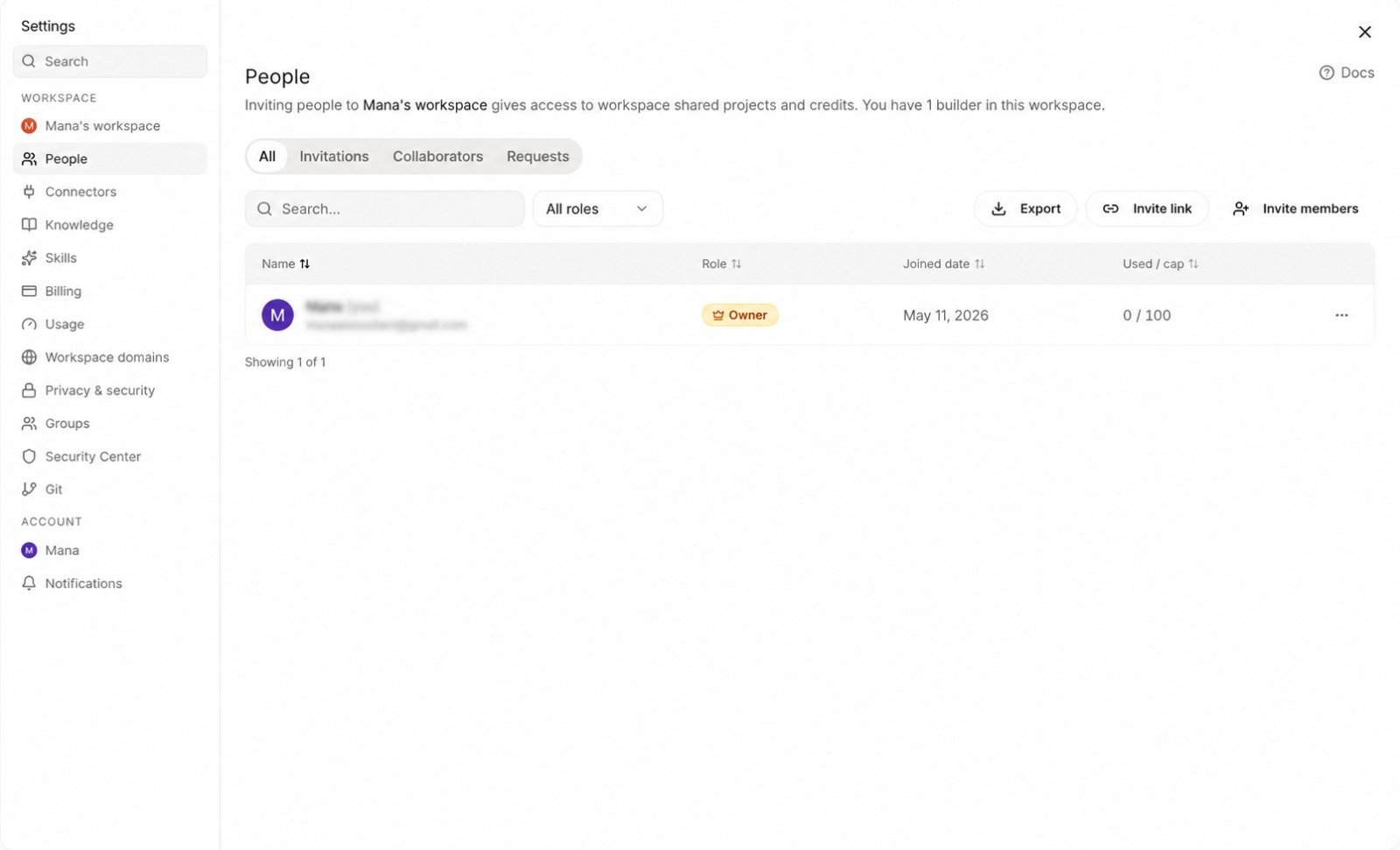 For project-level collaboration (Admin / Editor / Viewer per project), see [Project settings → People → Collaborators](/docs/workspace/project-settings#collaborators).
## Workspace roles
Roles are strictly ordered: **Owner > Admin > Editor > Viewer.**
| Role | Can do |
| ---------- | ---------------------------------------------------------------------------------------- |
| **Owner** | Everything, including delete the workspace and transfer ownership |
| **Admin** | Manage members, billing, integrations, connectors; full access to every project |
| **Editor** | Create and edit projects in the workspace; cannot manage members, billing, or connectors |
| **Viewer** | Read-only access to projects in the workspace |
There is exactly **one owner** per workspace. Ownership can be transferred but not shared. Only owners can assign the owner role.
The default for new members is **Editor** — enough to create projects and ship work, not enough to change billing or invite others.
## Inviting members
Workspace settings → **Team**.
Choose **Invite by email** for individual invites, or **Invite link** to open the link dialog. Both flows ask for the invitee's email and the workspace role, then mint a token-backed, role-scoped URL — the link is single-use and tied to the email you entered, so a forwarded URL won't let the wrong person in.
Set the workspace role. Optionally, restrict access to a subset of projects only (see [Project-scoped access](#project-scoped-access) below).
If the invitee already has a Vibely account, they're added to the workspace immediately. If not, they get a sign-up link; once they sign up, they land in your workspace.
Invites expire after 7 days. Resend or revoke from the same panel.
### Pending invitations
The **Team** panel shows a **Pending** tab listing every invitation that hasn't been accepted yet — invitee email, role, who sent it, and when it expires. Admins can revoke a pending invite at any time; the token is invalidated immediately and the link 404s.
## Project-scoped access
By default, members can see every project in the workspace at the level their role allows. You can override that for any member — restricting them to a specific list of projects.
This is useful for:
* **Client collaborators** — give them Editor access to one project, no visibility into anything else
* **Short-engagement contractors** — scope to a single project for the engagement
* **Cross-functional teammates** — give Marketing Viewer access to the marketing-site project, not to the internal admin tool
Project-scoped access composes with project-level Collaborator roles ([Project settings](/docs/workspace/project-settings)). A Workspace Viewer who is also a project Editor *can* edit that project; the project role takes precedence within that project's scope.
## Changing someone's role
Team panel → click a member → **Change role**. The change applies immediately. Members in the affected role get a system notification so they're not surprised by capability changes. **Only owners can promote a member to owner**; admins can promote up to and including Admin.
Downgrading from Admin to Editor revokes billing and connector access immediately. Their existing projects keep working; they just can't manage workspace-level settings any more.
## Removing members
Team panel → member → **Remove** (or **Leave workspace** if it's yourself). Their access is revoked immediately, and the action is written to the audit log with actor, target, and timestamp.
The member's commits and edits stay in project history — only their ability to make *new* ones is removed. Removing a member doesn't delete:
* Projects they created (they stay in the workspace; ownership stays with the workspace, not the individual)
* Their comments on previews
* Their entries in audit logs
If a removed member returns, they need a new invite — the previous one is invalidated.
## Per-member credit limits
Admins can cap how many AI credits each member consumes per billing cycle, from **Team → \ → Spend limit**. The cap is monthly and resets on the workspace's renewal date.
* Useful for client collaborators, interns, or contractors where you want a guardrail without restricting which projects they work on.
* Once a member hits their cap, their agent turns are paused until the next reset (or until an admin raises the cap).
* The workspace's overall spend cap still applies on top of per-member caps.
See the [per-member usage view](/docs/workspace/admin-settings#billing) under admin settings for the live consumption breakdown.
## Member groups (Business)
Groups are named buckets of members used for bulk access management. Create them from **Team → Groups** — e.g. `eng-mobile`, `client-acme`, `design-leads`.
* A member can belong to multiple groups.
* Group membership is independent of workspace role; the effective permission is `role ∨ project grants ∨ group grants`.
* Admins can export the full group / member matrix to CSV for auditing.
### Group project grants
Instead of granting access to one member at a time, admins can give a whole group view / edit / admin access to a project from **Project settings → Access → Add group**. Revoking the group revokes everyone in it from that project in one click.
This pairs especially well with client engagements: create a `client-acme` group, grant it admin access to the Acme projects, and onboarding a new collaborator is one drag-and-drop.
## Member limits per plan
| Plan | Members | Groups & group grants | Per-member credit caps |
| -------- | -------- | --------------------- | ---------------------- |
| Free | 1 (solo) | — | — |
| Pro | Up to 3 | — | ✓ |
| Business | Up to 25 | ✓ | ✓ |
Each workspace runs its own seat limit because each workspace is its own subscription. See [Creating workspaces](/docs/workspace/overview#creating-workspaces) for the pay-then-create flow when you spin up another.
Hitting the seat limit doesn't break anything — new invites are queued, and you're prompted to upgrade.
## Transferring ownership
People panel → an admin's row → **Transfer ownership**. The current owner becomes an admin; the chosen admin becomes the owner.
Useful for:
* Founders handing off operational ownership to a CTO or COO
* Agencies handing the workspace to a client at project completion
* Employee changes when the owning person leaves the company
The transfer is immediate and irreversible without another transfer back.
## Next
Add per-project Admin / Editor / Viewer access.
Billing, security, audit, connected accounts.
Structure, switching, and when to split workspaces.
Workspace identity and branding.
For project-level collaboration (Admin / Editor / Viewer per project), see [Project settings → People → Collaborators](/docs/workspace/project-settings#collaborators).
## Workspace roles
Roles are strictly ordered: **Owner > Admin > Editor > Viewer.**
| Role | Can do |
| ---------- | ---------------------------------------------------------------------------------------- |
| **Owner** | Everything, including delete the workspace and transfer ownership |
| **Admin** | Manage members, billing, integrations, connectors; full access to every project |
| **Editor** | Create and edit projects in the workspace; cannot manage members, billing, or connectors |
| **Viewer** | Read-only access to projects in the workspace |
There is exactly **one owner** per workspace. Ownership can be transferred but not shared. Only owners can assign the owner role.
The default for new members is **Editor** — enough to create projects and ship work, not enough to change billing or invite others.
## Inviting members
Workspace settings → **Team**.
Choose **Invite by email** for individual invites, or **Invite link** to open the link dialog. Both flows ask for the invitee's email and the workspace role, then mint a token-backed, role-scoped URL — the link is single-use and tied to the email you entered, so a forwarded URL won't let the wrong person in.
Set the workspace role. Optionally, restrict access to a subset of projects only (see [Project-scoped access](#project-scoped-access) below).
If the invitee already has a Vibely account, they're added to the workspace immediately. If not, they get a sign-up link; once they sign up, they land in your workspace.
Invites expire after 7 days. Resend or revoke from the same panel.
### Pending invitations
The **Team** panel shows a **Pending** tab listing every invitation that hasn't been accepted yet — invitee email, role, who sent it, and when it expires. Admins can revoke a pending invite at any time; the token is invalidated immediately and the link 404s.
## Project-scoped access
By default, members can see every project in the workspace at the level their role allows. You can override that for any member — restricting them to a specific list of projects.
This is useful for:
* **Client collaborators** — give them Editor access to one project, no visibility into anything else
* **Short-engagement contractors** — scope to a single project for the engagement
* **Cross-functional teammates** — give Marketing Viewer access to the marketing-site project, not to the internal admin tool
Project-scoped access composes with project-level Collaborator roles ([Project settings](/docs/workspace/project-settings)). A Workspace Viewer who is also a project Editor *can* edit that project; the project role takes precedence within that project's scope.
## Changing someone's role
Team panel → click a member → **Change role**. The change applies immediately. Members in the affected role get a system notification so they're not surprised by capability changes. **Only owners can promote a member to owner**; admins can promote up to and including Admin.
Downgrading from Admin to Editor revokes billing and connector access immediately. Their existing projects keep working; they just can't manage workspace-level settings any more.
## Removing members
Team panel → member → **Remove** (or **Leave workspace** if it's yourself). Their access is revoked immediately, and the action is written to the audit log with actor, target, and timestamp.
The member's commits and edits stay in project history — only their ability to make *new* ones is removed. Removing a member doesn't delete:
* Projects they created (they stay in the workspace; ownership stays with the workspace, not the individual)
* Their comments on previews
* Their entries in audit logs
If a removed member returns, they need a new invite — the previous one is invalidated.
## Per-member credit limits
Admins can cap how many AI credits each member consumes per billing cycle, from **Team → \ → Spend limit**. The cap is monthly and resets on the workspace's renewal date.
* Useful for client collaborators, interns, or contractors where you want a guardrail without restricting which projects they work on.
* Once a member hits their cap, their agent turns are paused until the next reset (or until an admin raises the cap).
* The workspace's overall spend cap still applies on top of per-member caps.
See the [per-member usage view](/docs/workspace/admin-settings#billing) under admin settings for the live consumption breakdown.
## Member groups (Business)
Groups are named buckets of members used for bulk access management. Create them from **Team → Groups** — e.g. `eng-mobile`, `client-acme`, `design-leads`.
* A member can belong to multiple groups.
* Group membership is independent of workspace role; the effective permission is `role ∨ project grants ∨ group grants`.
* Admins can export the full group / member matrix to CSV for auditing.
### Group project grants
Instead of granting access to one member at a time, admins can give a whole group view / edit / admin access to a project from **Project settings → Access → Add group**. Revoking the group revokes everyone in it from that project in one click.
This pairs especially well with client engagements: create a `client-acme` group, grant it admin access to the Acme projects, and onboarding a new collaborator is one drag-and-drop.
## Member limits per plan
| Plan | Members | Groups & group grants | Per-member credit caps |
| -------- | -------- | --------------------- | ---------------------- |
| Free | 1 (solo) | — | — |
| Pro | Up to 3 | — | ✓ |
| Business | Up to 25 | ✓ | ✓ |
Each workspace runs its own seat limit because each workspace is its own subscription. See [Creating workspaces](/docs/workspace/overview#creating-workspaces) for the pay-then-create flow when you spin up another.
Hitting the seat limit doesn't break anything — new invites are queued, and you're prompted to upgrade.
## Transferring ownership
People panel → an admin's row → **Transfer ownership**. The current owner becomes an admin; the chosen admin becomes the owner.
Useful for:
* Founders handing off operational ownership to a CTO or COO
* Agencies handing the workspace to a client at project completion
* Employee changes when the owning person leaves the company
The transfer is immediate and irreversible without another transfer back.
## Next
Add per-project Admin / Editor / Viewer access.
Billing, security, audit, connected accounts.
Structure, switching, and when to split workspaces.
Workspace identity and branding.